Supplier Information Management (SIM) makes it easy to request, approve, and maintain supplier information while keeping it all in sync with our ERP.
What is Coupa SIM?
SIM is Rivian's solution for onboarding Indirect and Capex suppliers (and maintaining their information).
- Coupa's Supplier Information Management (SIM) makes it easy to request, approve, and maintain supplier information while keeping it all in sync with our ERP.
- The information managed by SIM includes banking details, tax, quality, insurance certifications and contact information. The digital workflow ensures all information is routed and approved through the appropriate channels.
- SIM helps keep supplier information current and accurate to ensure suppliers are paid on-time and eliminates some manual channels for managing supplier data.

Click to see intro video on Coupa's Supplier Information Management
What is TPRM and Coupa Risk Assess (CRA)?
CRA is the system by which Rivian's Third Party Risk Management (TPRM) team identifies, evaluates and monitors risk for each supplier relationship.
- The goal of the TPRM program is to identify risk within our supply chain and perform relevant risk assessments through various forms of due diligence.
- During the on-boarding process, due diligence requests may be issued to your company to complete in the CRA system.
- These due diligence requests may involve questionnaires or requests for information related to Cybersecurity/Privacy, Financial, Reputational, EHS and/or Responsible Sourcing risk.
- The information your company provides in support of the due diligence process will only be used to support Rivian's risk management activities.
- Failure to comply with all due diligence requests may impact your ability to be approved for on-boarding.
- Please note: Not all suppliers will receive the same due diligence, and some suppliers may not be asked to complete any due diligence.
How it Works?
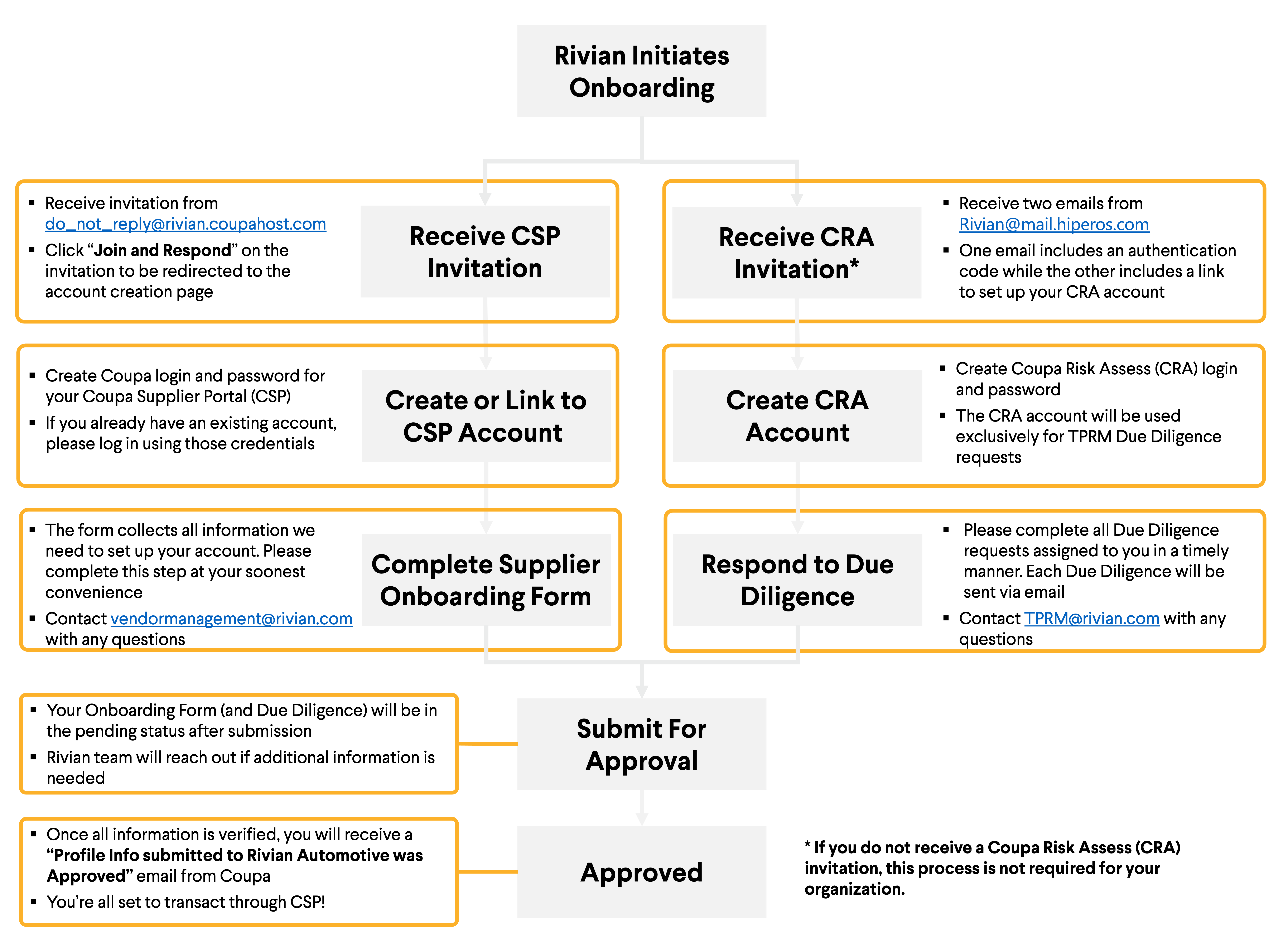
The SIM digital workflow ensures all information is efficiently and effectively routed to the appropriate channels and for approval.
Create Coupa Supplier Account
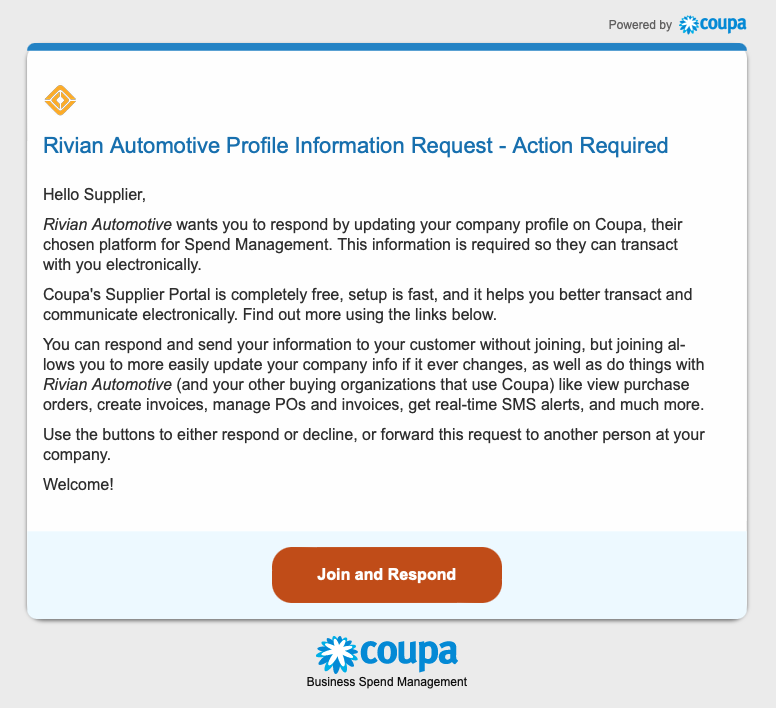
An invitation from Rivian is required to start the process.
New suppliers will receive an email like the one shown in the image from Coupa Supplier Portal.
Click "Join and Respond" to be redirected to the account creation page.
Look out for an email from do_not_reply@supplier.coupahost.com and check your spam folder too. If you still can't locate the invitation, please reach out to vendormanagement@rivian.com. In the subject line, please include your vendor name.
Enter Account Details
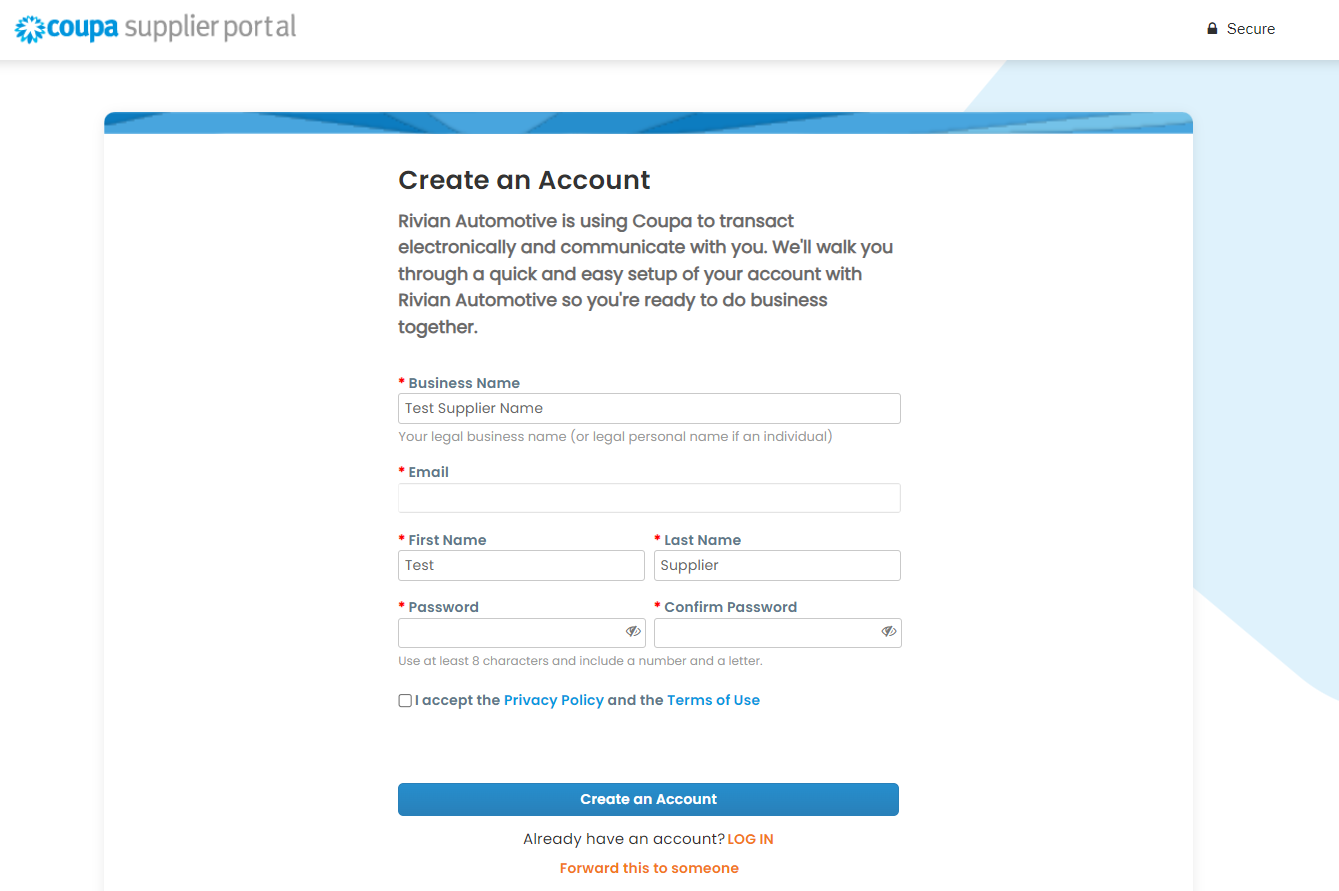
You will be prompted to enter all the required fields to create a Coupa account.
Please be sure to provide the official registered company name in this section - this name will be displayed on your invoices.
Already have a Coupa account?
Please log in with existing user ID and go to Profile > Information Requests > Rivian Automotive to access our onboarding forms.
- If the Admin user doesn't see Rivian Automotive under the Information Requests drop down, please reach out to your Rivian contact.
Company has different email for accessing Coupa?
Please use the 'forward this..' option to forward the invite to the appropriate email.
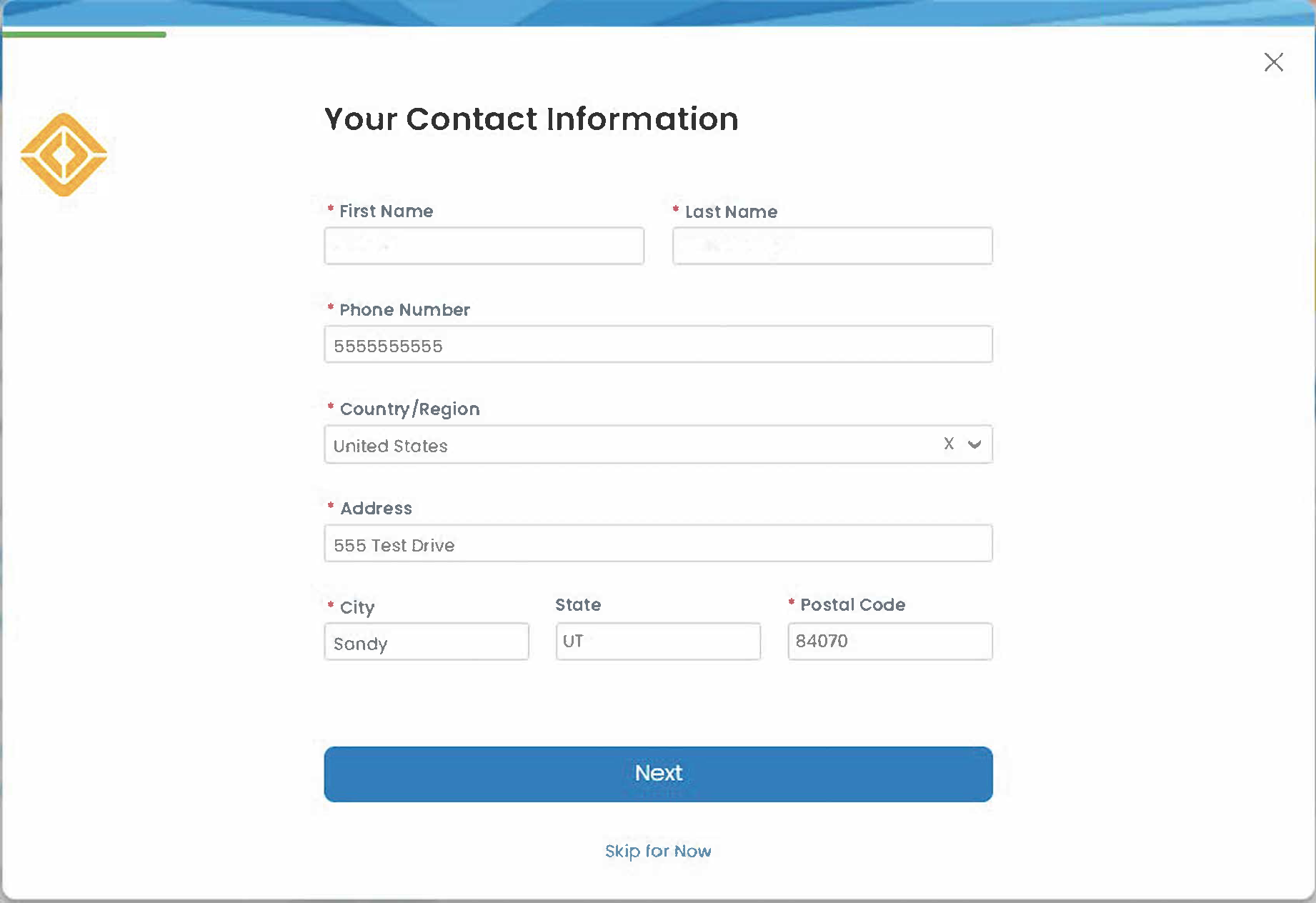
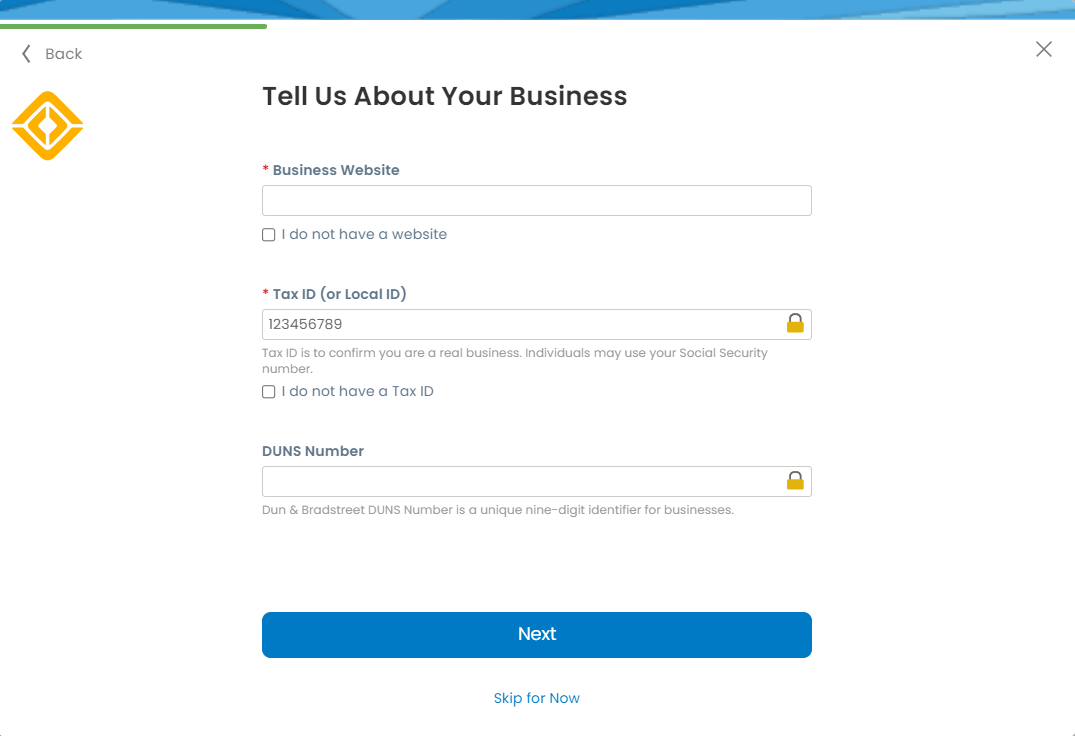
Contact & Business Info
Please fill in your contact information and some more company details.
Contact info required fields:
- First and Last Name
- Phone Number
- Country/ Region
- Address
Business info required fields:
- Business Website
- Tax ID
- DUNS Number (if applicable)
Click "Next" when finished.
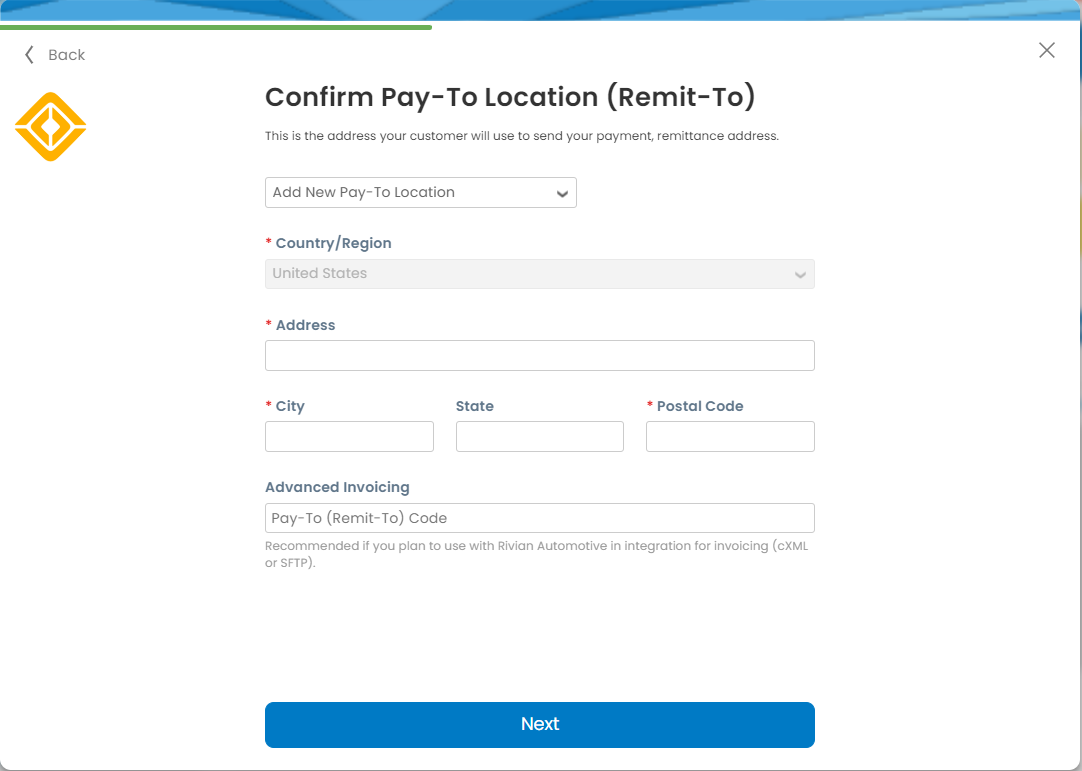
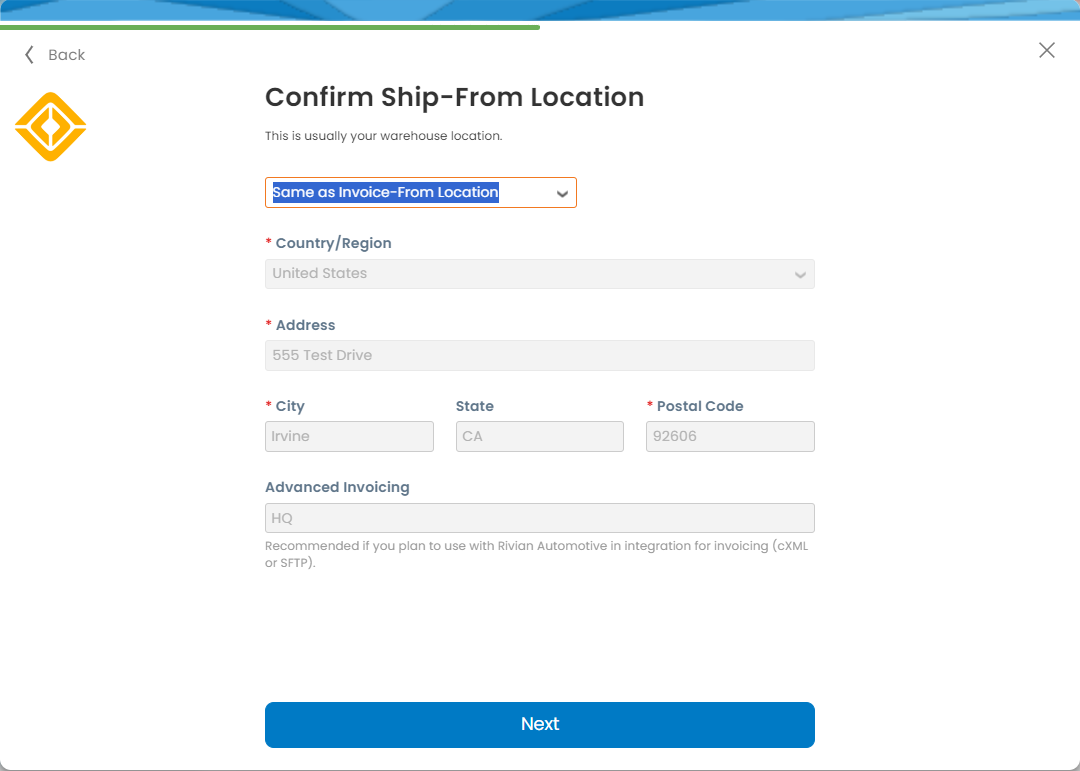
Confirm Addresses
You will have the option to apply the same address to Pay-to location and Ship from location.
Select or add new address to confirm these locations:
- Invoice-from location: main address of your registered business.
- Pay-to location: Rivian will use this address to send your payment.
- Ship from location: usually your warehouse location.
Provide Advance Invoicing information if your company supports integration (cXML or SFTP).
Go to Portal
Basic profile completed - more information will be required to get your account up and running.
Click "Take Me There" to visit your Coupa Supplier Portal (CSP) and set up screen.
Please utilize the Coupa Support Chat on the bottom right of your screen if any questions.
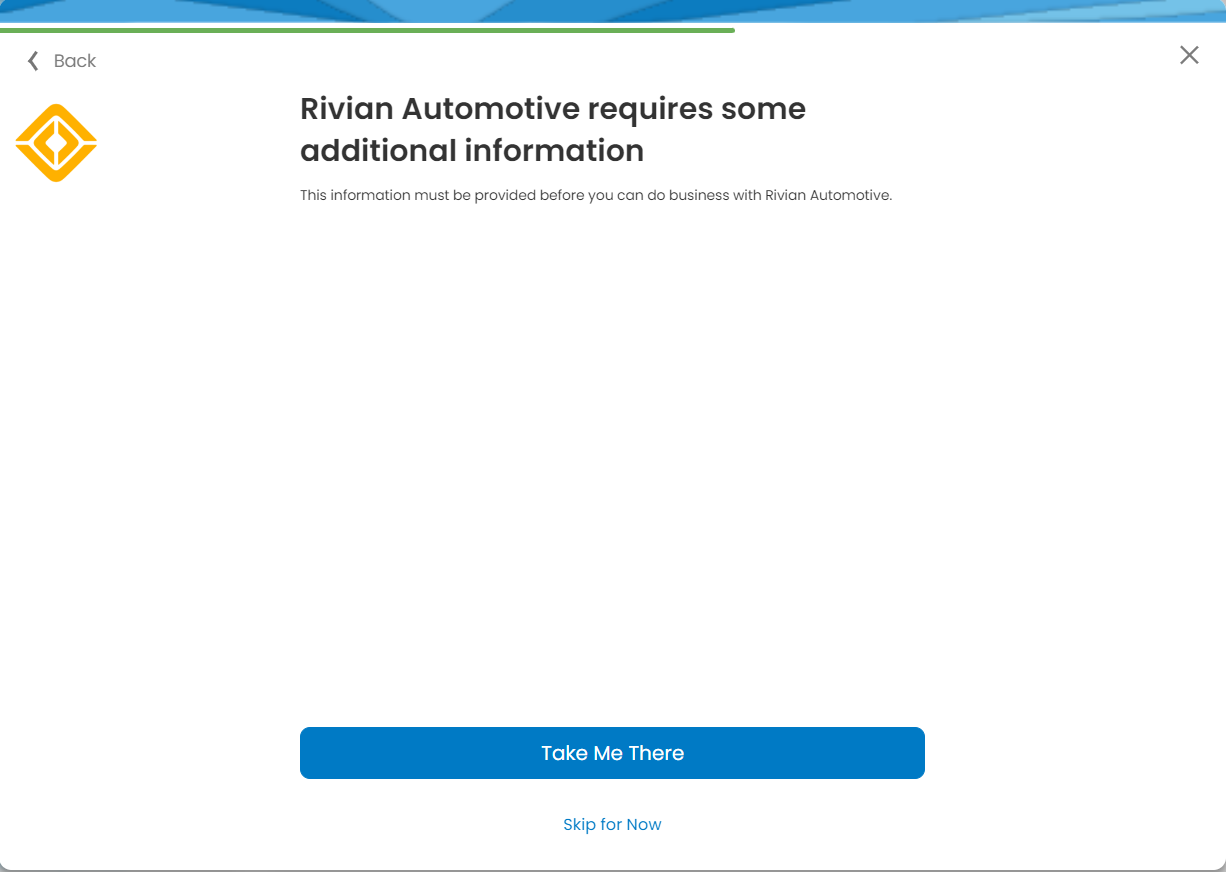
We need more information from your organization to support transactions.
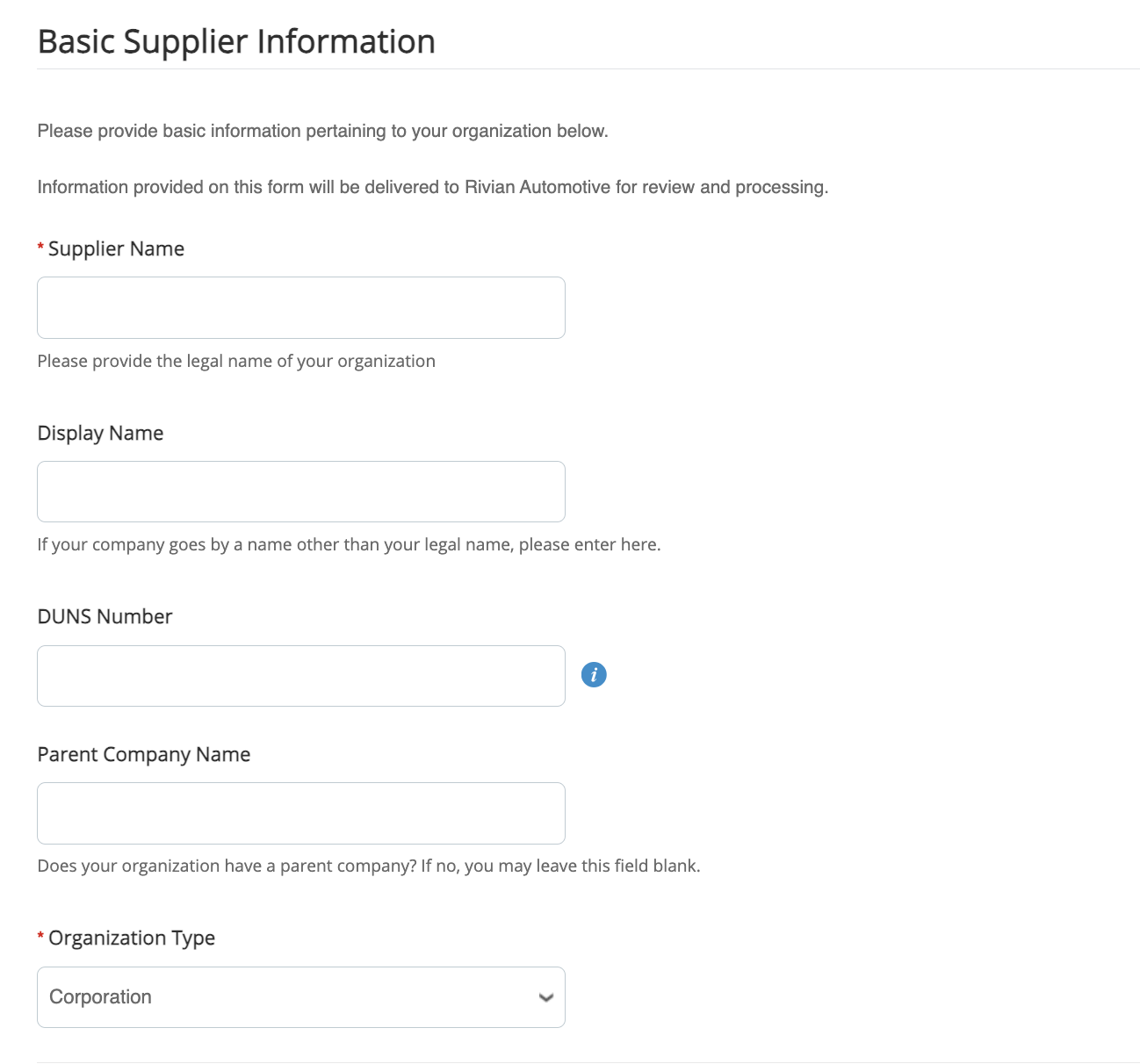
Basic Information
Follow the instructions to confirm the auto-filled information and complete all required fields.
- Supplier Name: legal name of your organization
- Display name: If your company goes by a name other than the legal name
- DUNS Number
- Parent Company Name: if applicable
- Organization Type: select from list
Primary Contact
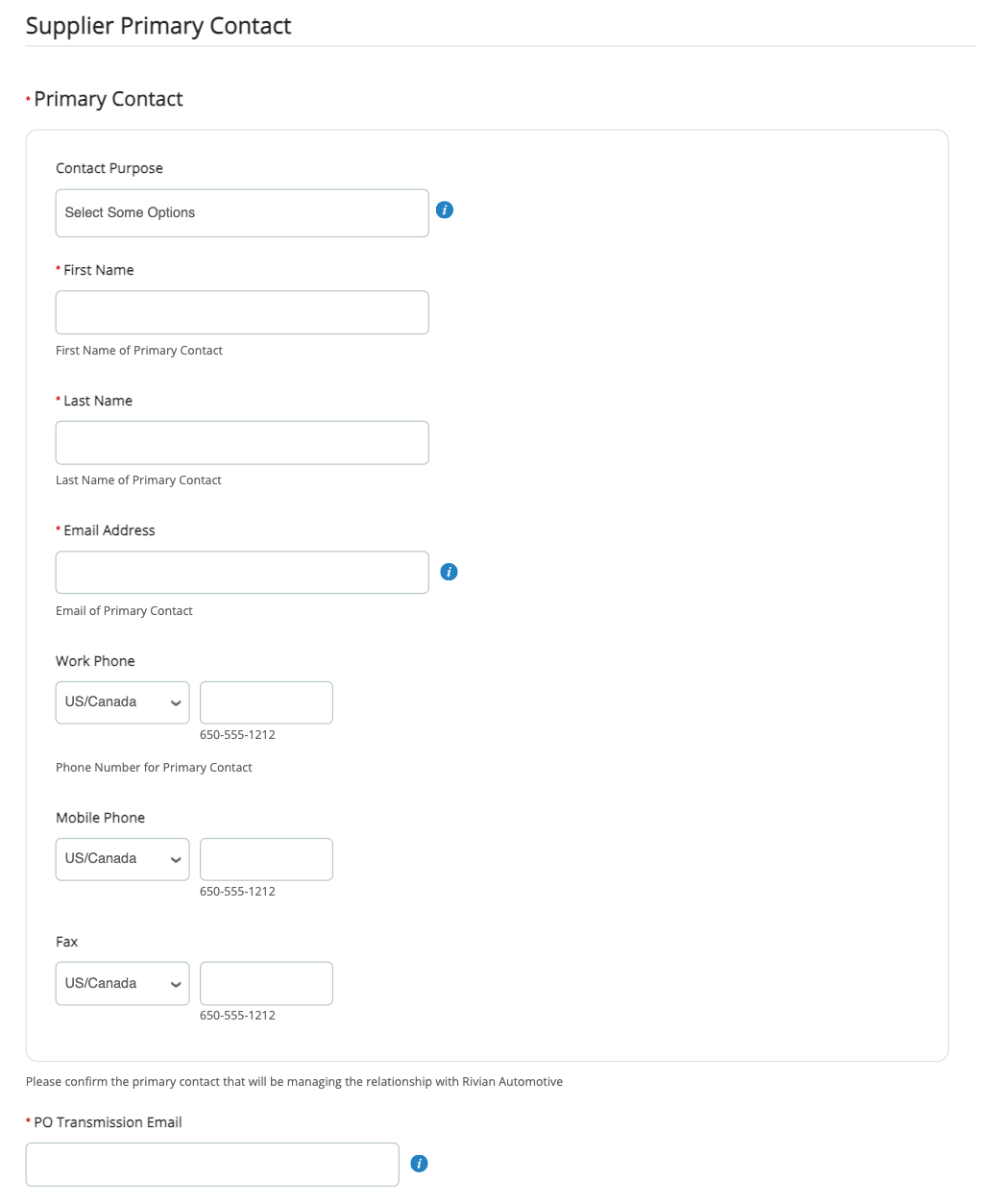
Add your primary contact details and PO transmission email.
- Primary contact should be the main point of contact.
- PO transmission email: POs will be sent here.
CSP display language can be updated at the bottom of the webpage.
Primary Address
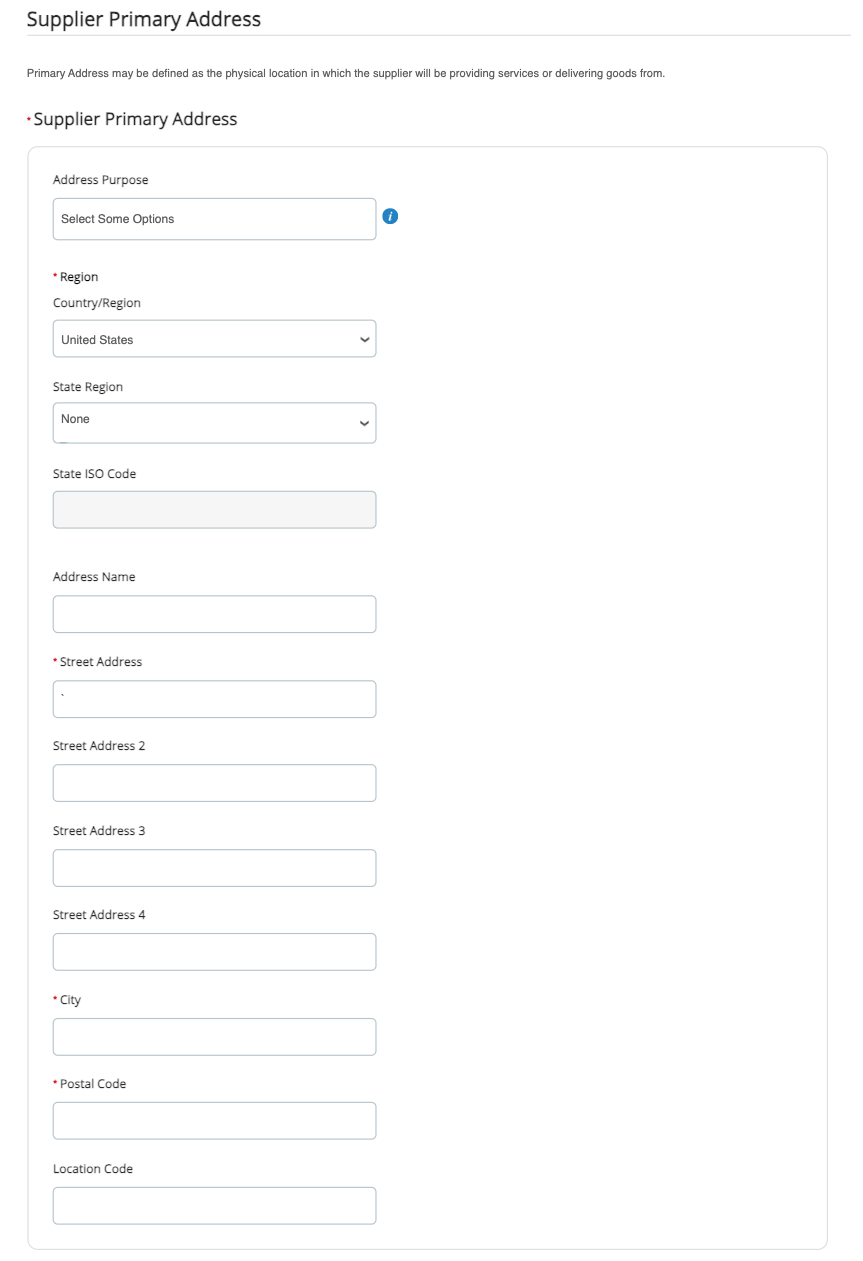
Supplier Primary Address is the physical location.
- Address Purposes: select one or more categories.
- Required fields: Region/State, Street Address, City, Postal Code.
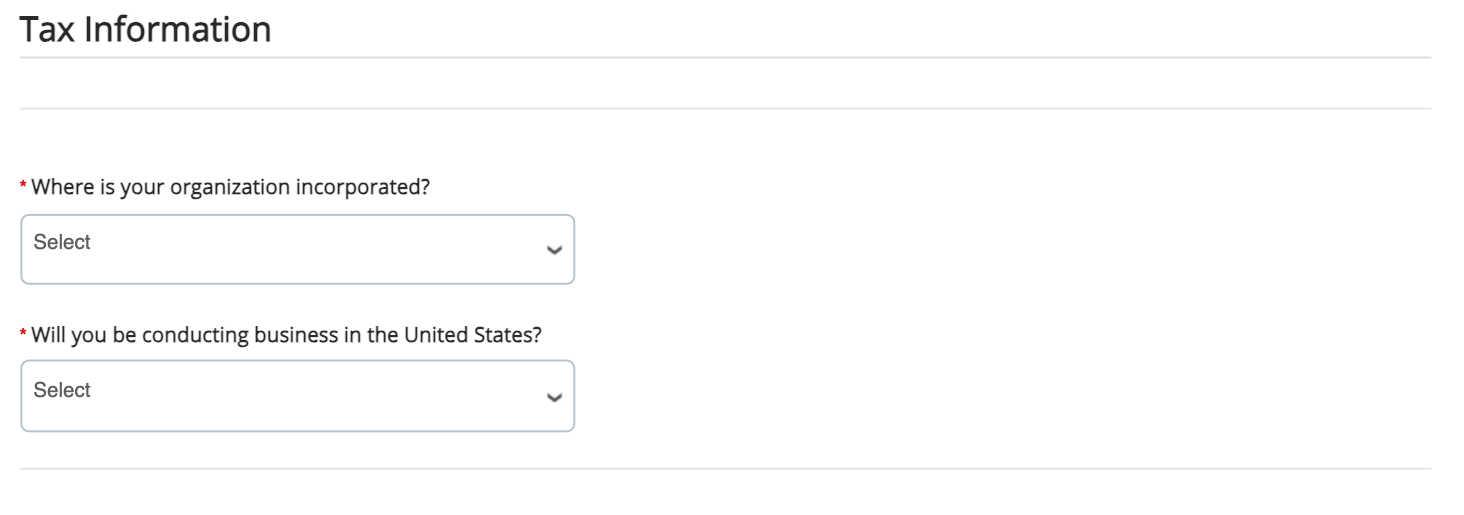
Tax Information
More fields will populate based on your incorporated location.
- United States: Federal Tax ID, *W9 Form
- International: VAT ID, *W-8 Form
*W-8/W-9 Form is only required when work is being performed on US soil. Please attach latest form from IRS.
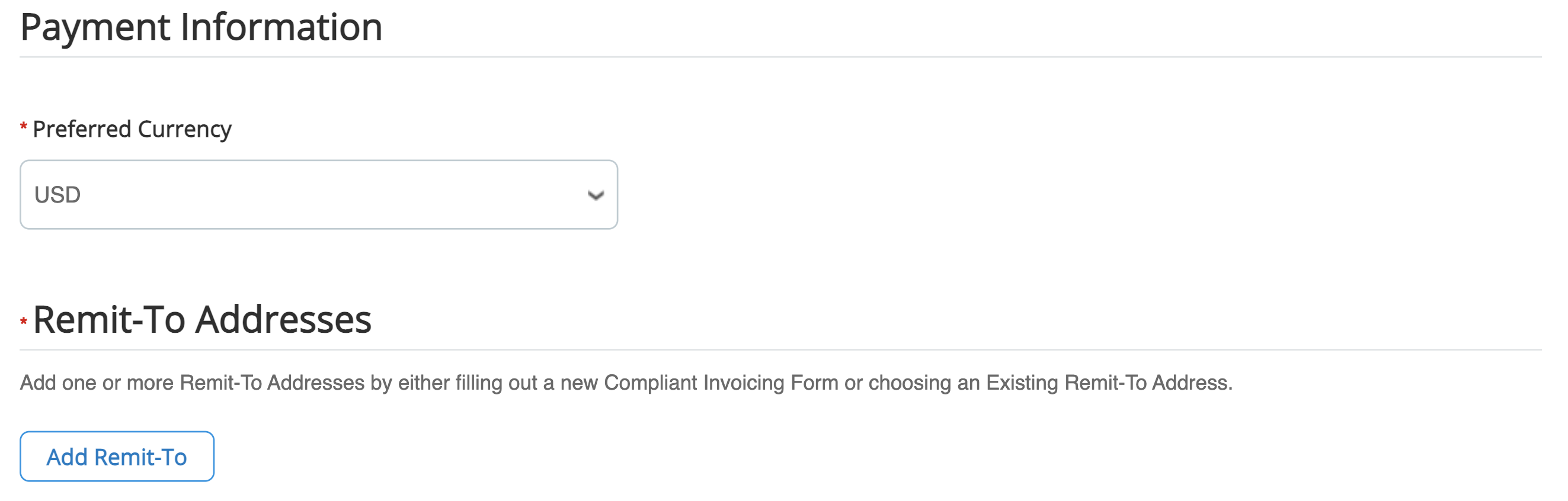
Payment Info
Providing your company's bank details.
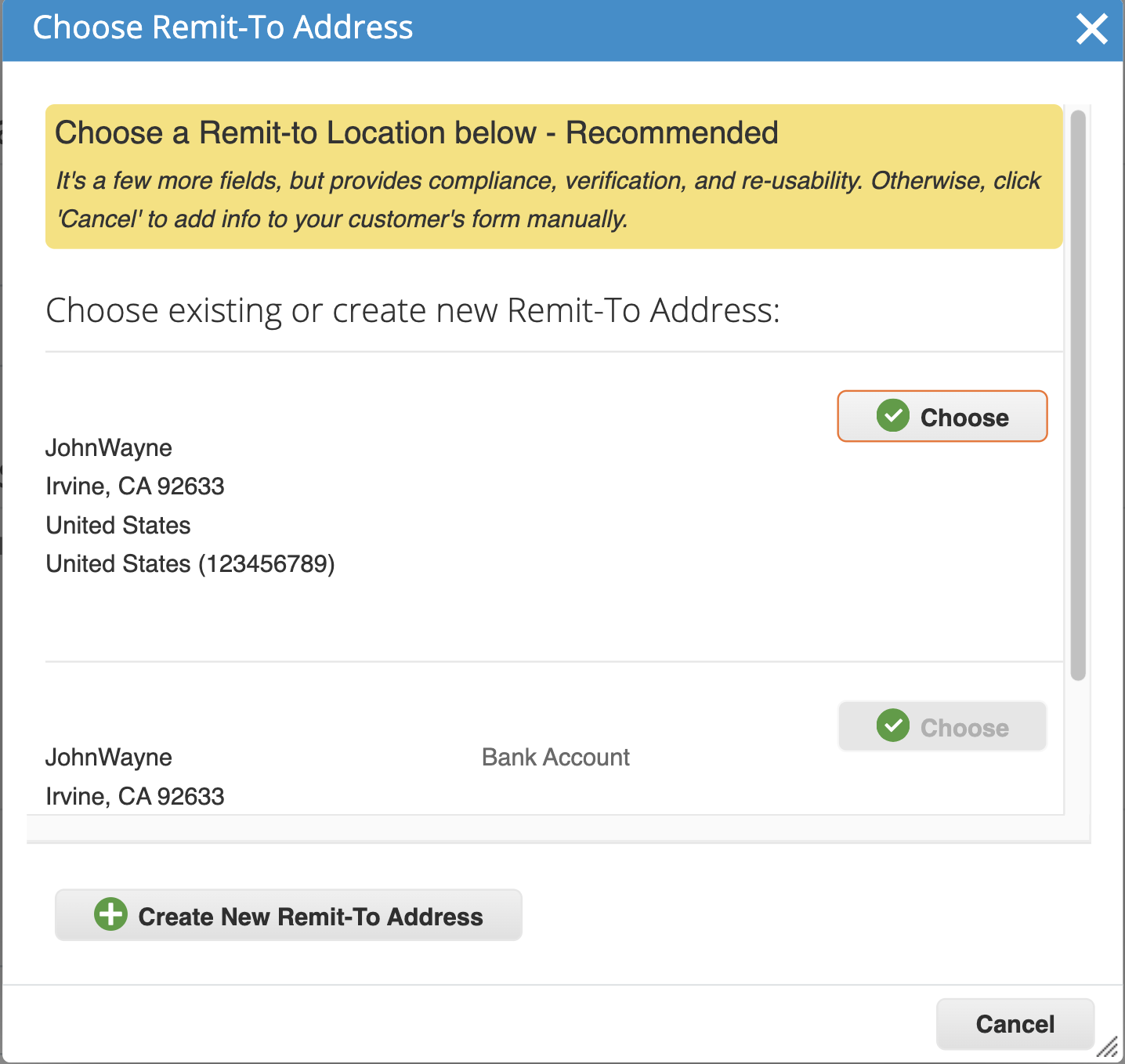
- Click on "Add Remit-To" or "Create new Remit-To Address".
- Fill out payment information and attach documents.
We require banking support documents for all Non-US vendors and US vendors preferring electronic payment. See Validation reqs.
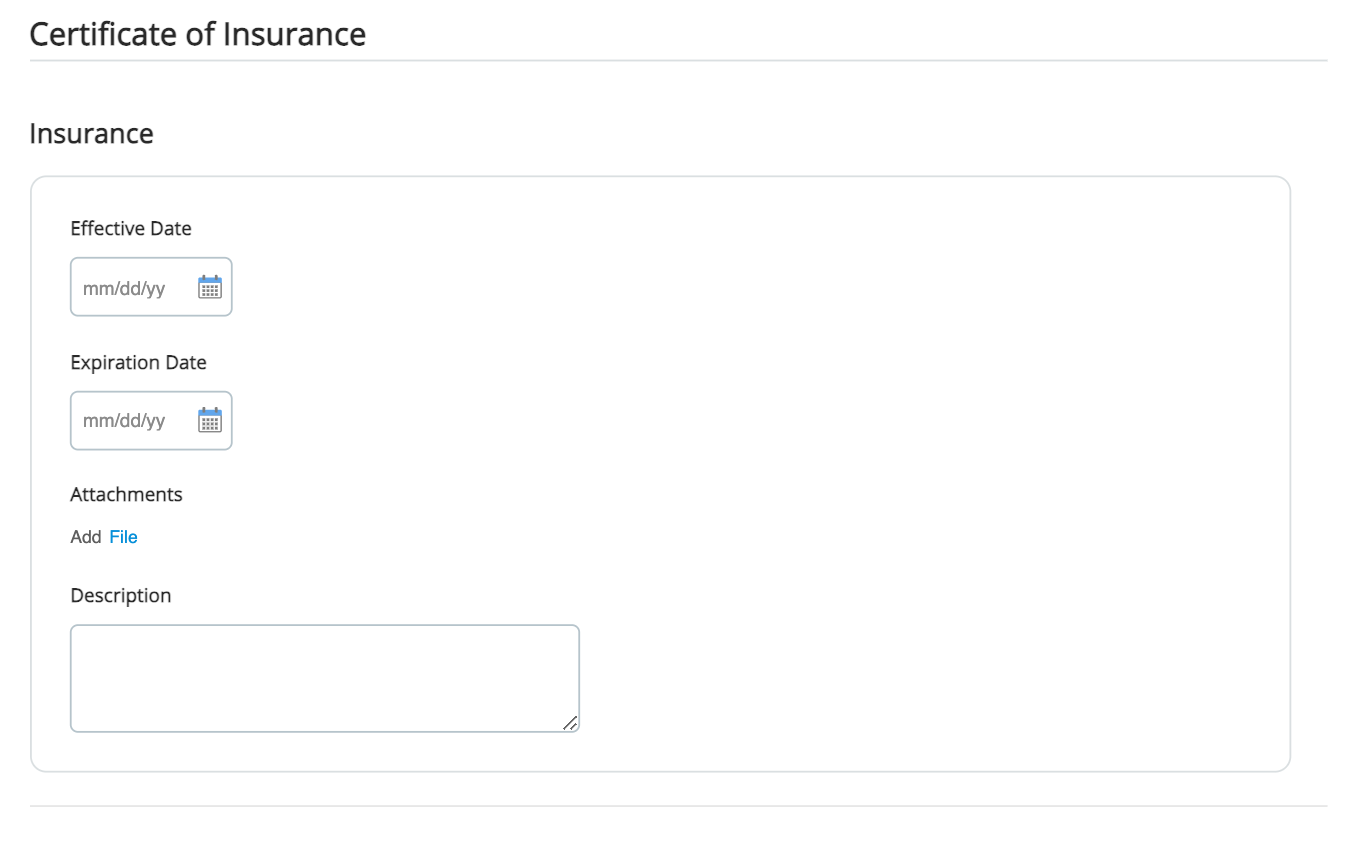
Certificate of Insurance
If your company has a Certificate of Insurance, please provide the details and attachments in this section.
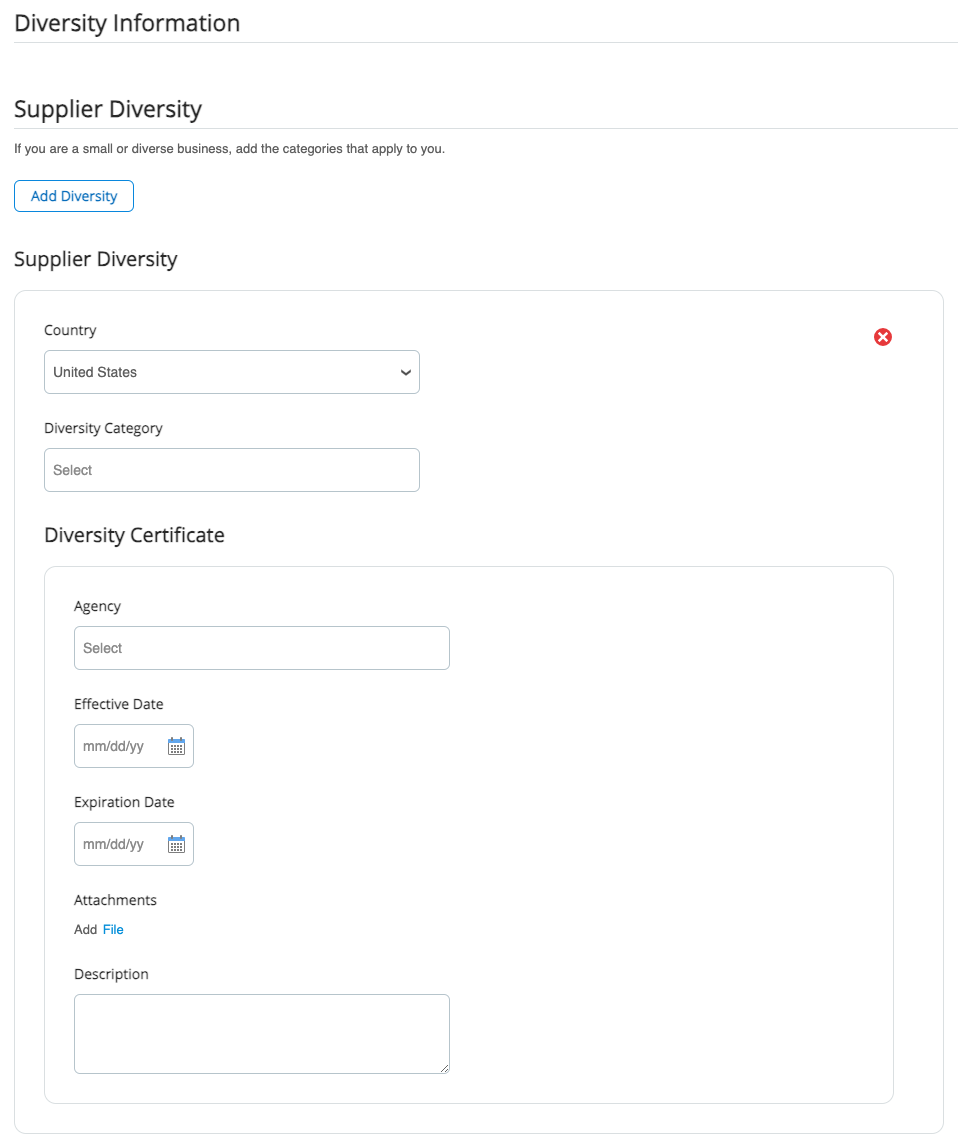
Supplier Diversity
If your company is a small or diverse business, please provide the details and attachments in this section.
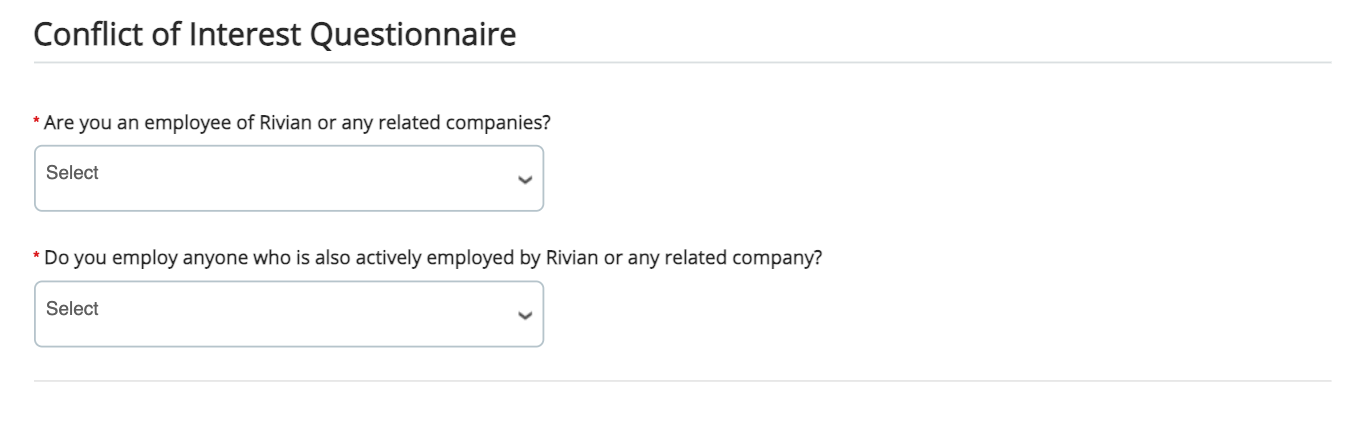
Conflict of Interest Questionnaire
Disclose Conflict of Interest here.
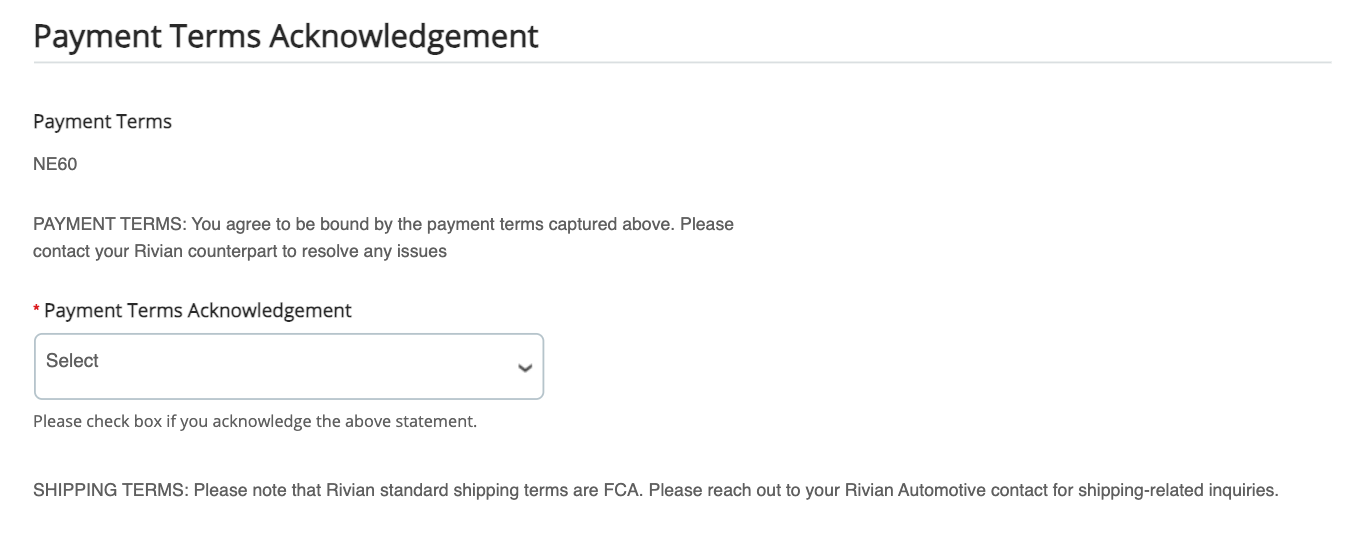
Payment Terms
Payment Terms Acknowledgement.
Please acknowledge the payment terms listed. Contact your Rivian counterpart to resolve any issues.
See Standard Terms and Conditions here.
Submit & Corrections
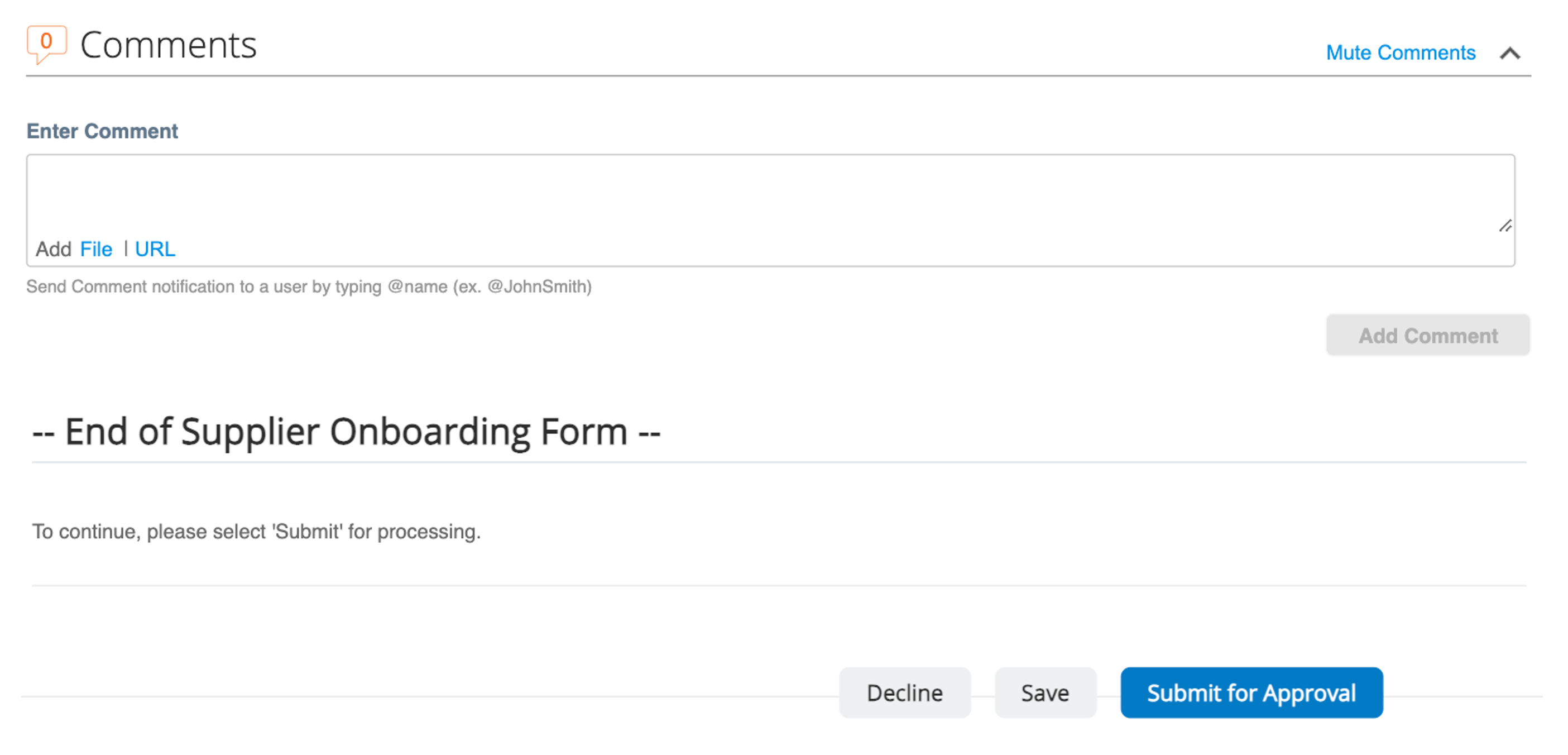
Congrats! You have reached the end of the onboarding form.
- Hit Save if you need more time.
- Click Submit for Approval when ready.
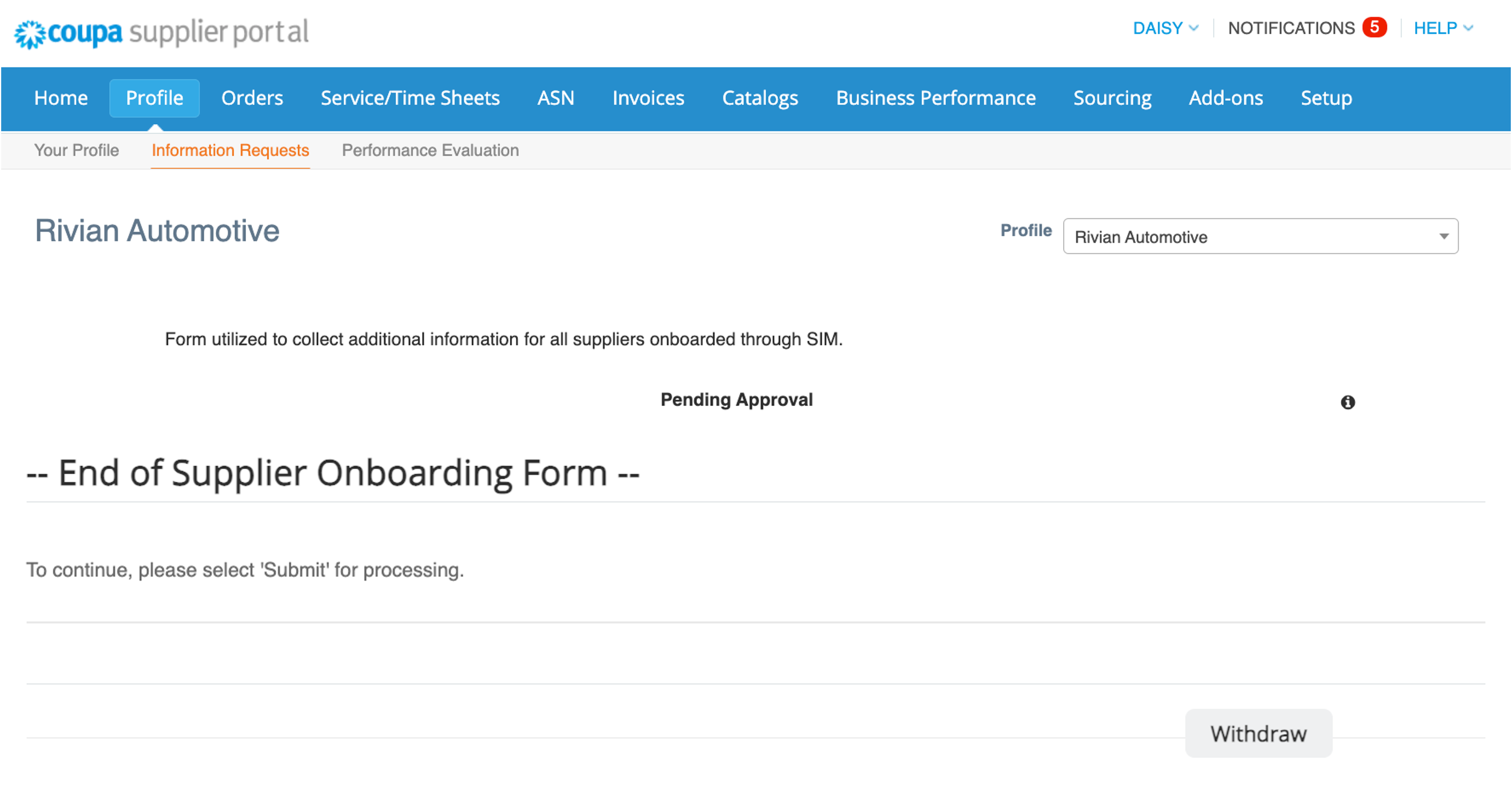
- If you notice an error after submitting, go to Profile > Information Request and click Withdraw to make edits.
Submit & Corrections
Congrats! You have reached the end.
- Hit Save if you need more time.
- Click Submit for Approval when ready.
- If you notice an error after submitting, go to Profile > Information Request and click Withdraw to make edits.