Invoices submitted to Rivian must meet the following requirements:
To ensure timely payment and prevent rejection, please adhere to these core principles.
- Standard terms are Net 60 unless explicitly agreed otherwise in writing.
- Payment schedule is based on the Invoice Date listed in Coupa. Ensure this matches your invoice copy.
Unless otherwise instructed, all invoices need to be submitted through the Coupa Supplier Portal (CSP)
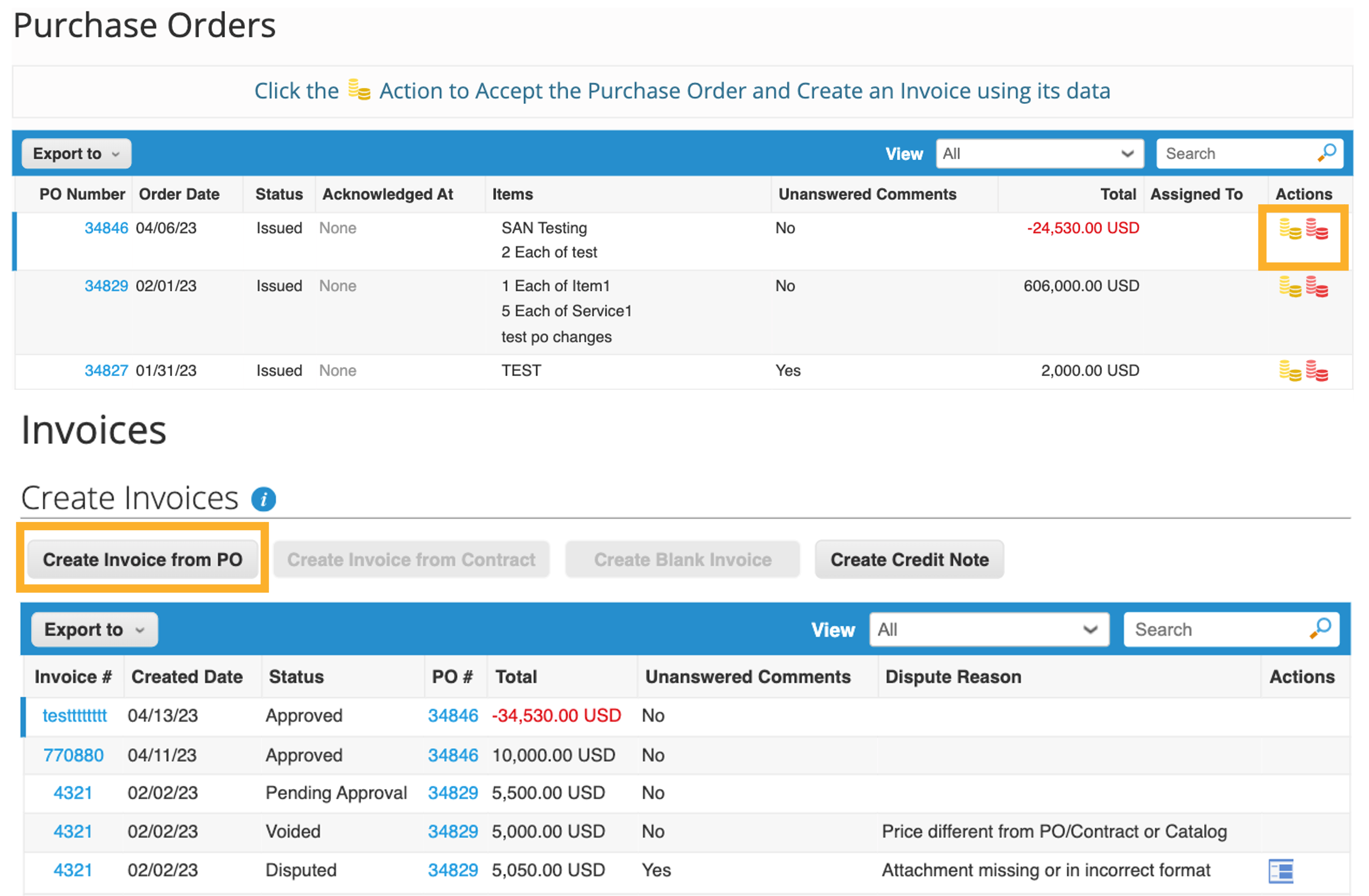
There are two ways to access the "Create Invoice" Page:
- Option 1: Navigate to the Orders tab and click the yellow "Create Invoice" icon in the action column.
- Option 2: From the Invoice tab, click "Create Invoice from PO" and select the relevant PO.
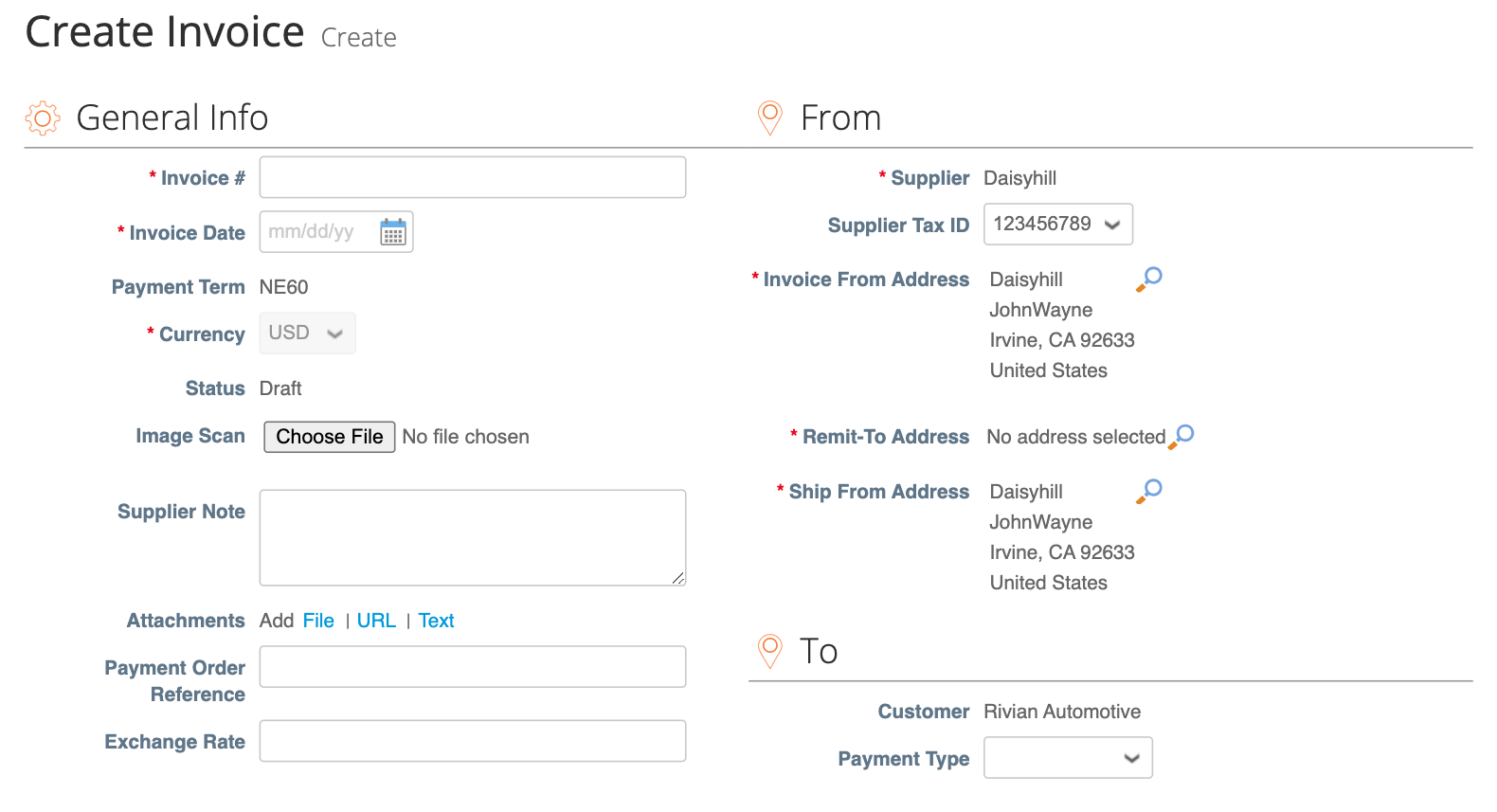
Fill in the mandatory fields:
- Invoice#: Your unique invoice number.
- Invoice Date: Update to match the date services/goods were delivered.
- Currency: Auto-matched to the PO.
- Attachments: Required. Invoices without attachments will be rejected.
- Addresses: From, Remit-To, and Ship-From will auto-populate.
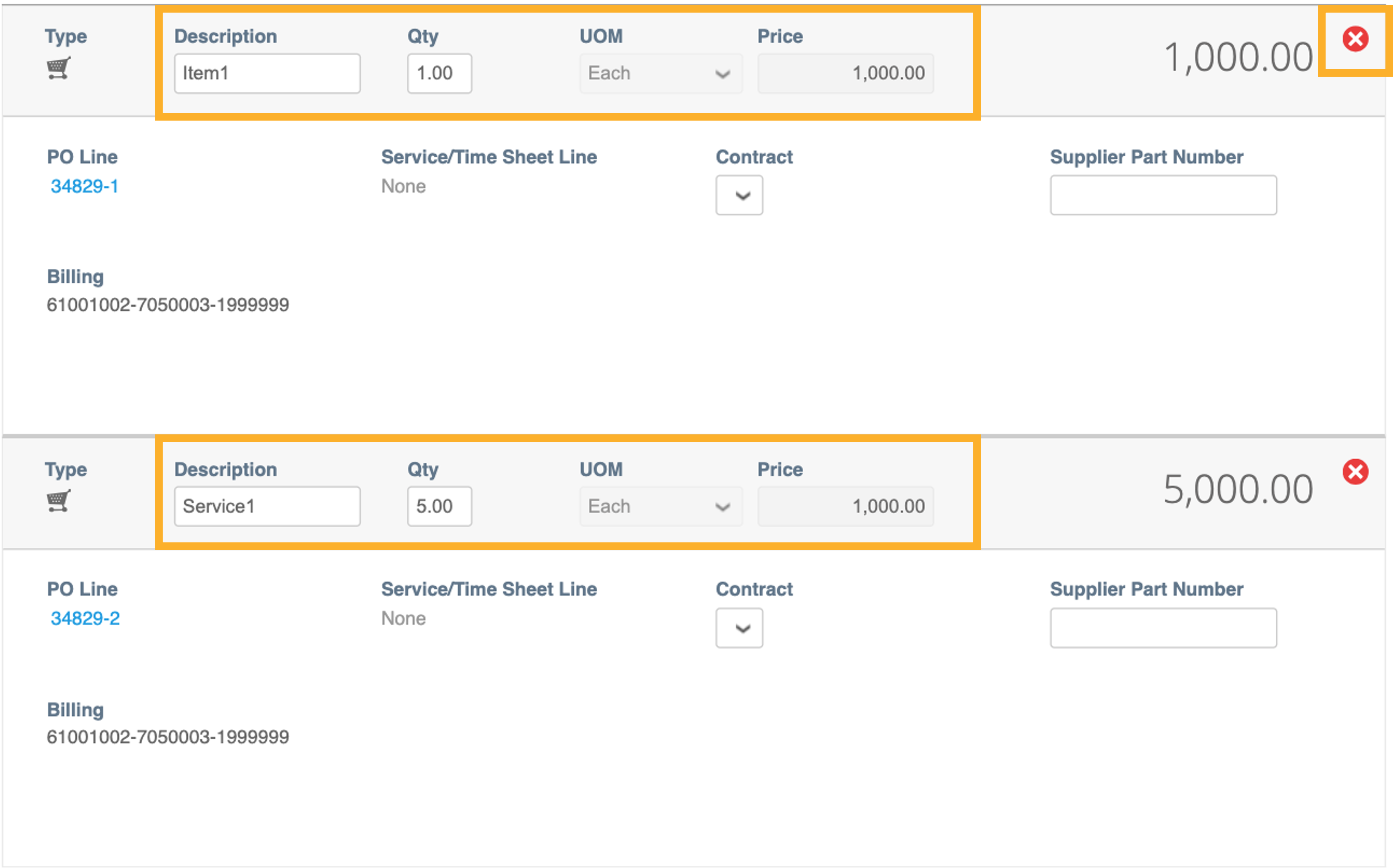
Invoice Line Creation: QTY Based Lines
- Lines with Description, QTY, UOM, and Price.
- QTY can be modified for partial invoicing (decimals allowed).
- If multiple invoices are submitted for one line, modify QTY for each.
- Use the red delete icon to remove lines not intended for current payment.
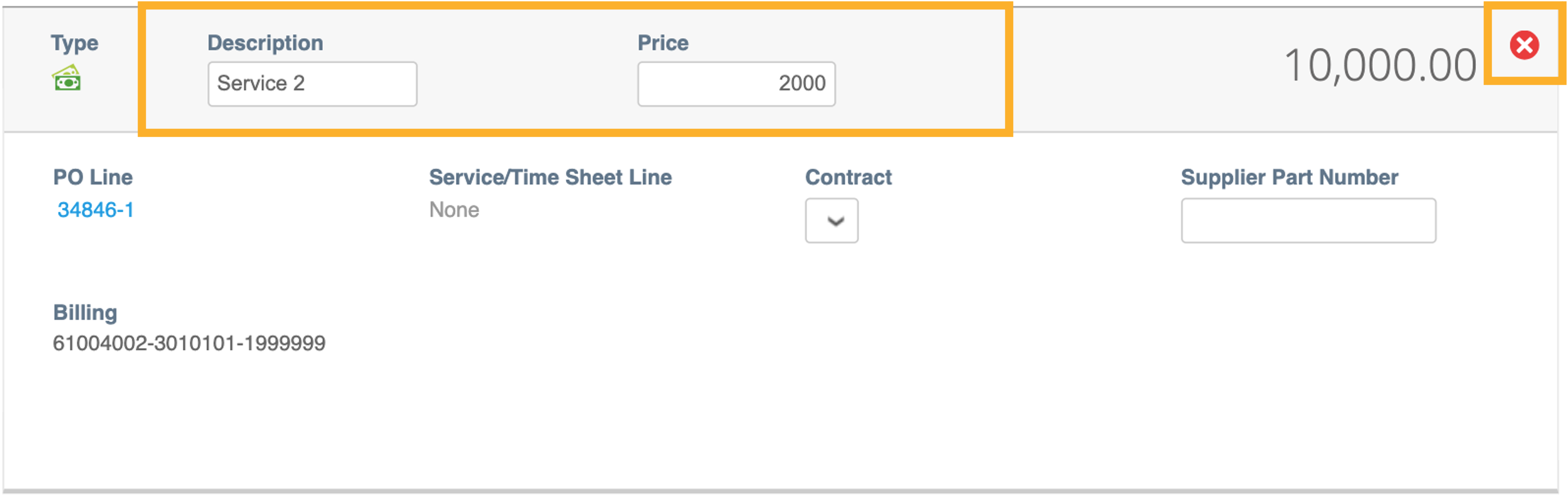
Invoice Line Creation: AMT Based Lines
- Lines with Description and Price.
- Price can be modified to create a partial invoice.
- Recommended: Use AMT format for all partial invoices.
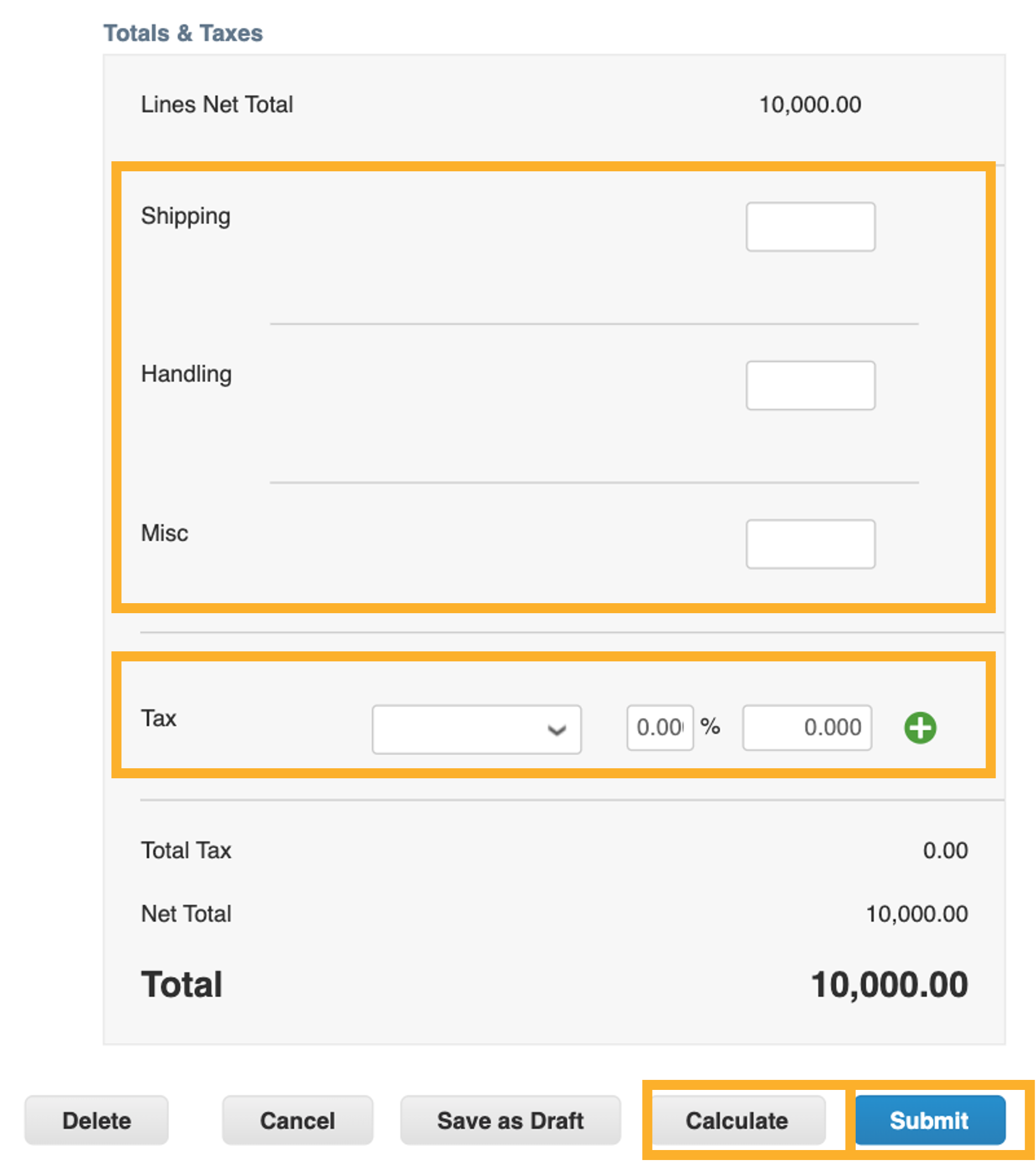
Total & Taxes
- Enter shipping, handling, and miscellaneous costs.
- Select applicable tax codes (VAT, GST, etc.) from the dropdown.
- Import Brokers: No tax code required for VAT on import goods; input total VAT amount only.
- Click Calculate to confirm the total, then Submit.
Status: Disputed
Invoices with information that Rivian does not agree to, needs clarification on, or finds incorrect.
You will receive an email notification with the dispute reason. Use the Resolve button on the Invoice page to action it.
- Void: Use if the invoice is a duplicate or already paid.
- Correct Invoice: Edit details and resubmit using the same invoice#.
- Cancel/Adjust: If Void/Correct aren't options, use a Credit Note (see below).
Credit notes resolve disputes, correct errors, or record miscellaneous credits like returns
Go to the Orders page and click the red "Create Credit Note" icon in the actions column of the relevant PO.
The process is similar to creating an invoice. Fill in:
- Credit Note# (Unique)
- Original Invoice# & Date
- Attachments for support
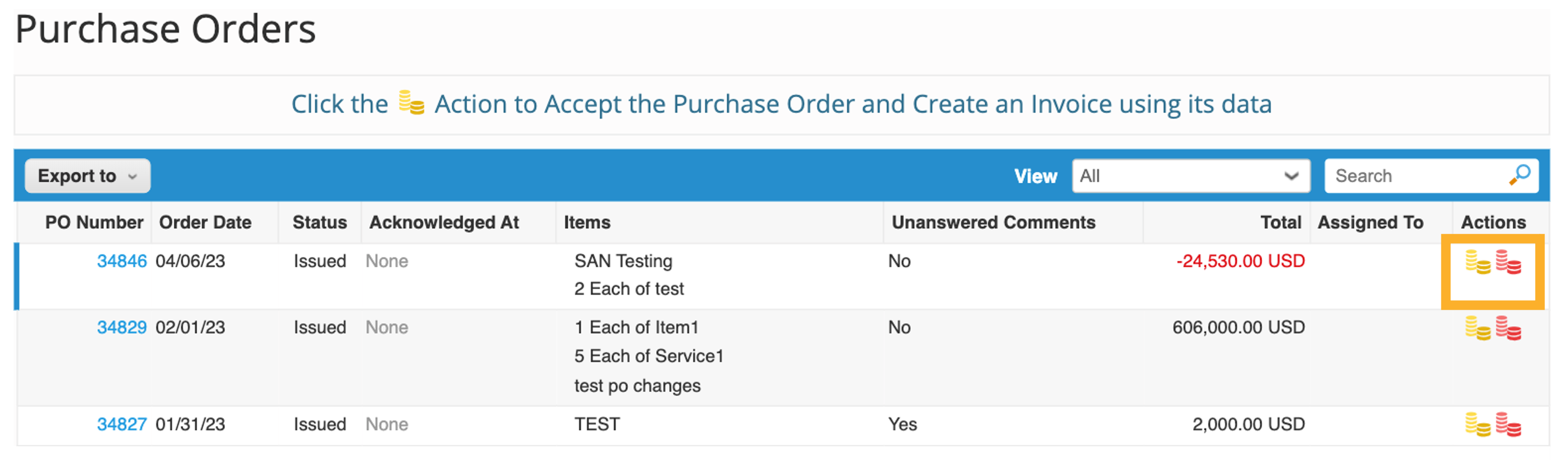
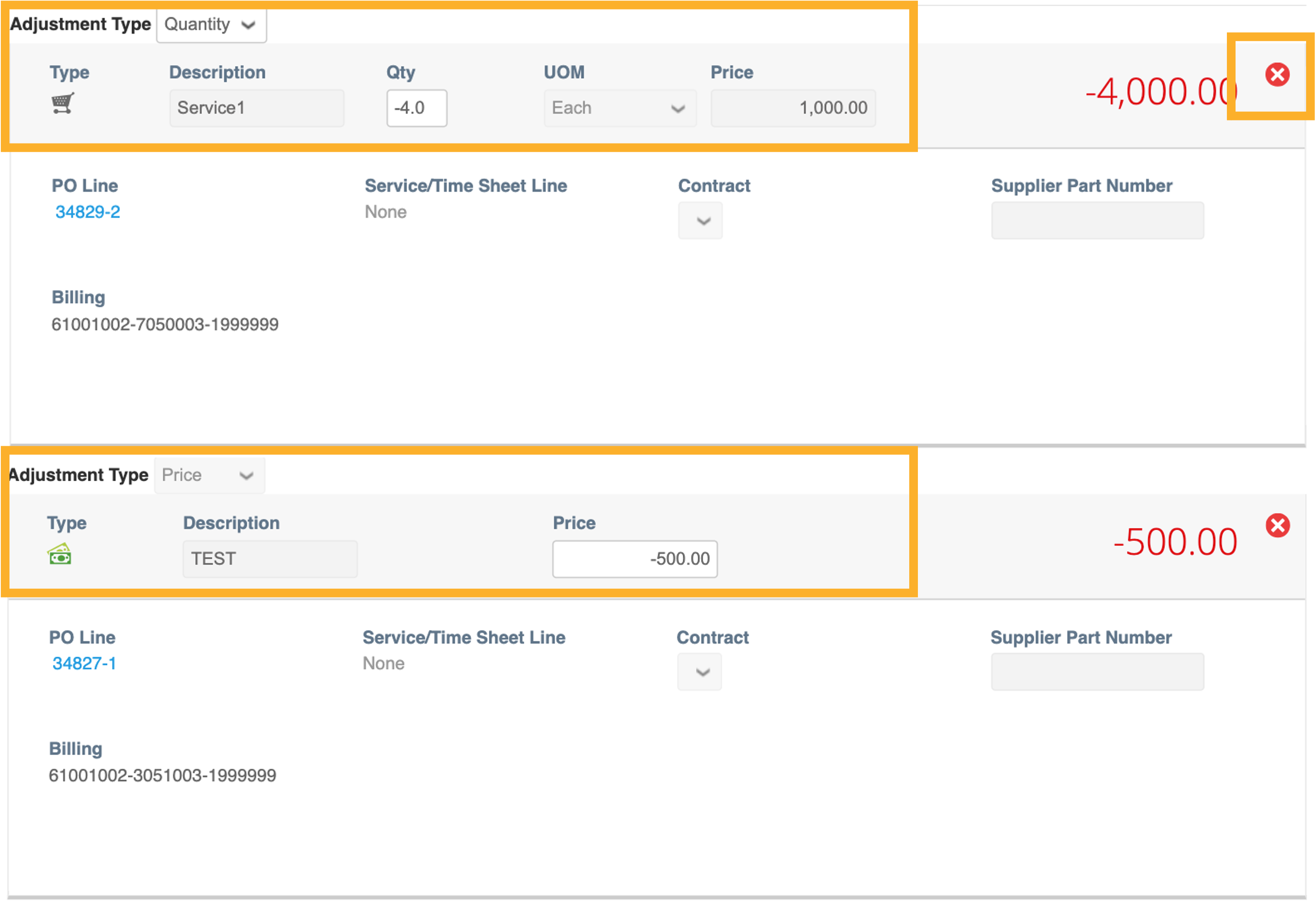
Lines & Adjustment Types:
- QTY Based: Choose Quantity (QTY negative), Price (Price positive), or Other (both editable).
- AMT Based: Price can be modified directly.
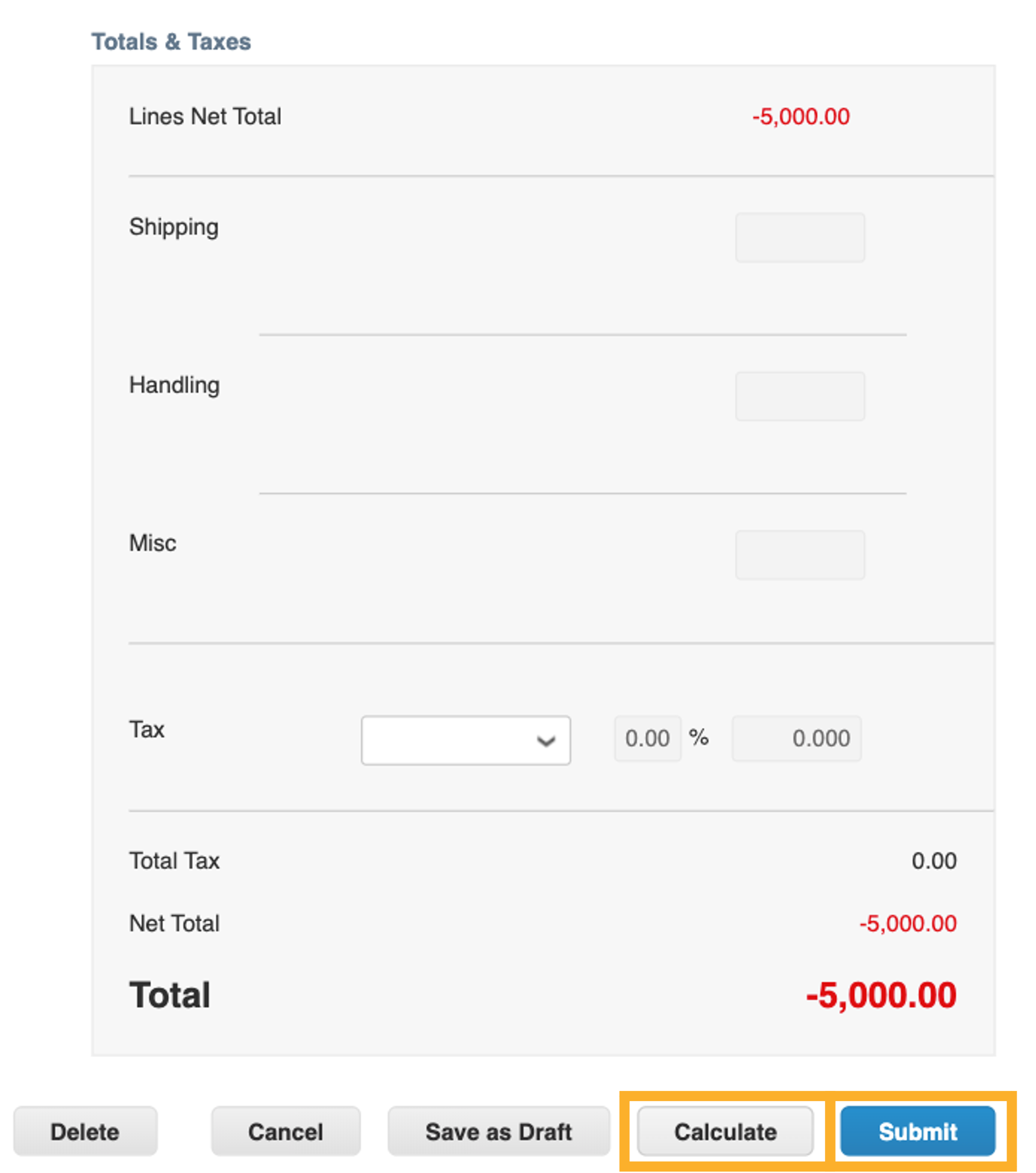
Total & Taxes:
- Enter values for shipping, handling, and miscellaneous.
- Select applicable tax codes/VAT logic (same as Invoice).
- Click Calculate then Submit.
Invoicing via Mailbox
Send to accountspayable@rivian.com with:
- PO# visible on document
- Unique Invoice# & Date
- Currency (if not USD)
- Line descriptions matching PO
- Taxes/Shipping separated
Crediting via Mailbox
Send to accountspayable@rivian.com with:
- Original Invoice# & PO# listed
- Copy of the credit memo attached
- Currency listed
- Note: Process a credit memo, not a refund request, for ongoing business.
Processing Schedule
Payment Due Date: Calculated from Invoice Date + Net Terms (e.g., 4/11 + Net 60 = 6/11).
Payment Cycle: Tuesdays and Thursdays.
Additional Support
- accountspayable@rivian.com: CSP support, dispute clarification, manual entry, status checks.
- appayments@rivian.com: Remittance info, payment verification.