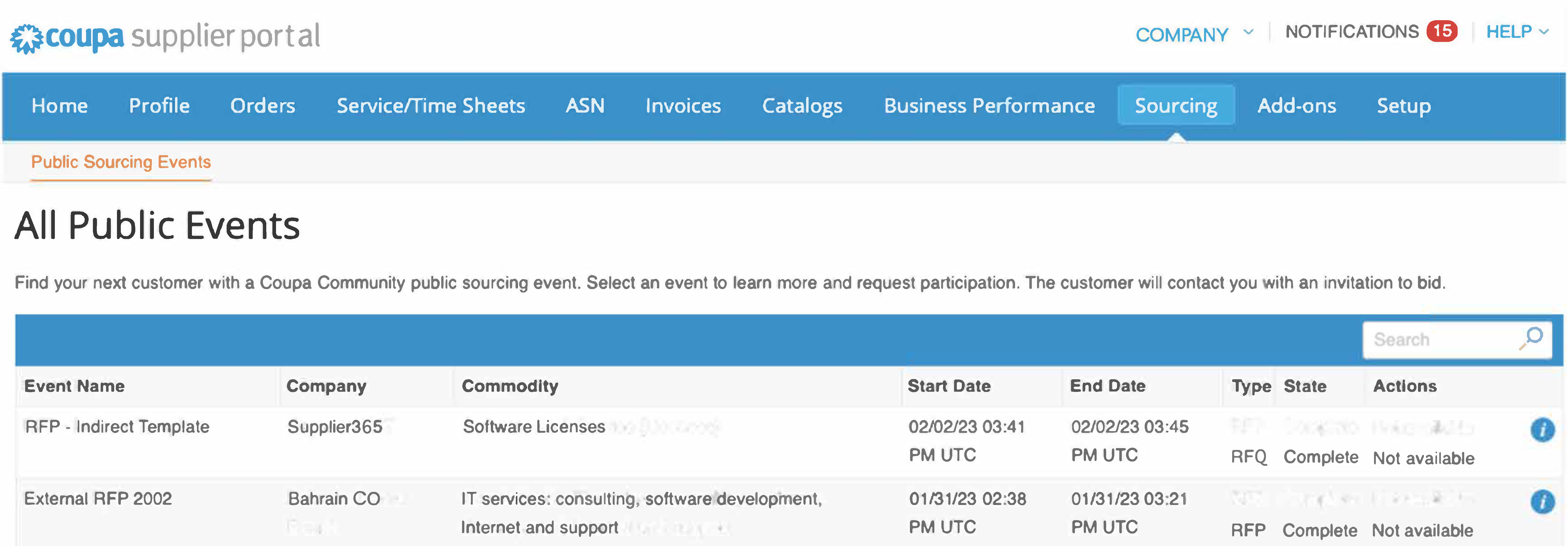
CSP Overview
What is CSP?
CSP is a free tool for suppliers to easily do business with customers who use Coupa.
- Coupa CSP (Coupa Supplier Portal) is a platform designed to improve communication and collaboration between suppliers and their customers. The platform provides suppliers with a centralized location to manage their customer interactions.
- The CSP allows users to manage content and settings on a customer-by-customer basis, including viewing purchase orders, setting up delivery methods, creating catalogs, sending invoices and advance ship notices (ASNs), checking the status of transactions, and more.
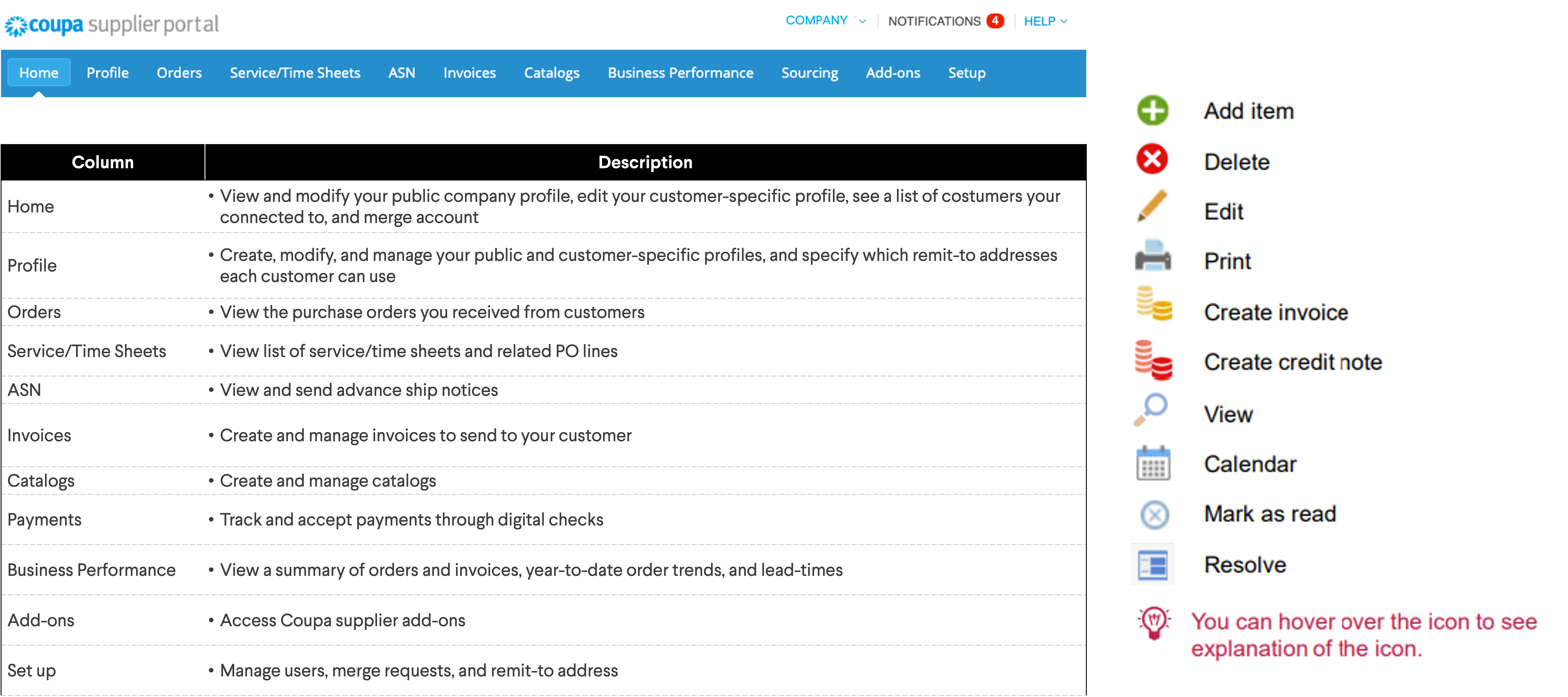
CSP Key Terms
Descriptions of the menu items and common icons that will help you navigate through the software.
CSP Profile
Create and Manage Your Profile
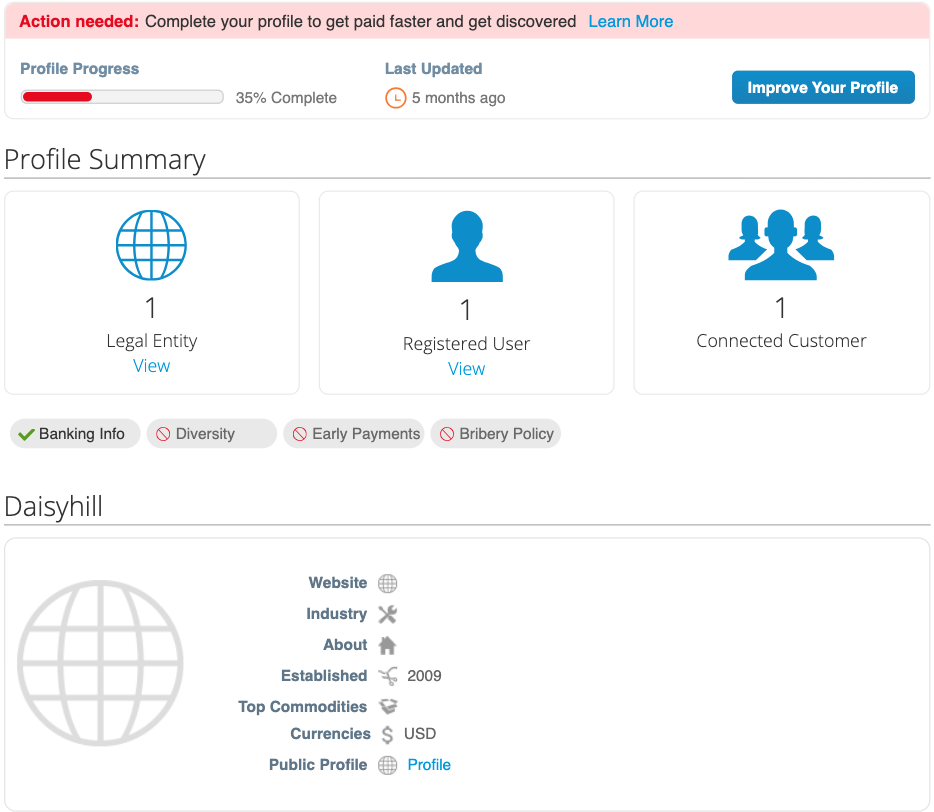
In the CSP, you have a public profile that is visible in the Coupa Supplier Portal Directory and allows potential customers to find your profile.
- You will see a summary of your profile on the CSP homepage.
- Click on the hyperlinks to manage the records or access your settings through Setup > Admin.
Create & Update Customer Profiles
Your Rivian profile was created when going through our onboarding sequence. If you started but did not complete onboarding, you could resume by going to Setup > Customer Setup and selecting Finish Setup.
After Setup, there are two ways to update your Rivian profile:
- Setup > Customer Setup > Edit Your Setup: This will bring you to the Legal Entity Setup where you can manage legal entity and remit-to accounts.
- Profile > Information Requests > Profile: Rivian Automotive: Clicking on Update Info at the bottom of the form will allow you to edit and add information and resubmit the form for approval.

Manage Users
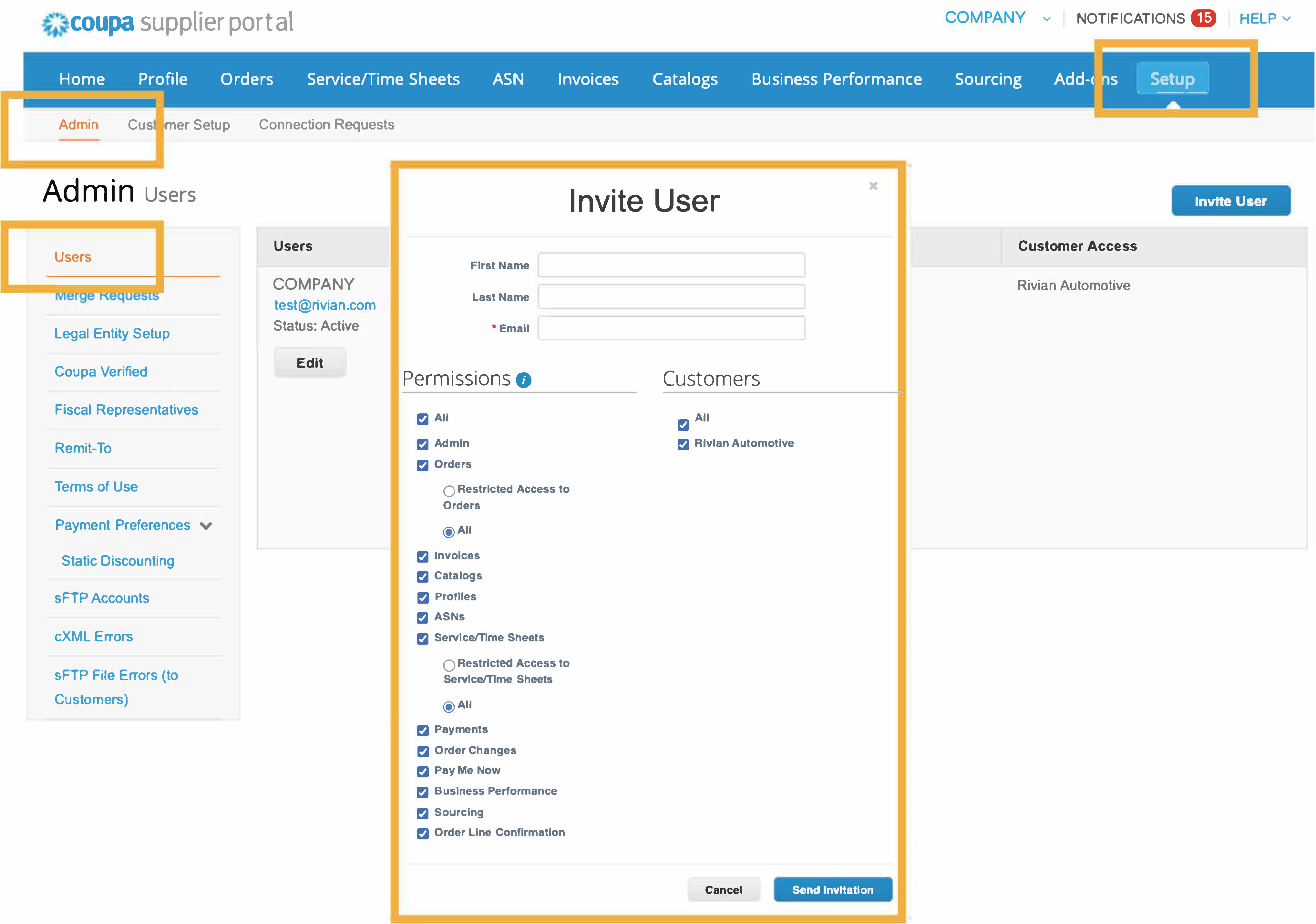
You can manage user permissions and customer access on the Setup page.
Under Setup > Admin > Users: Admin users can manage user permissions and customer access by assigning certain users to only certain customers and by limiting what types of documents they can access and what functions they can perform with their assigned customers.
- Click on Invite User to add a new user to your CSP.
- Click on Edit under a specific user to modify the person's account and customer permission.
Orders
Purchase Order 101
PO is a requirement for all Rivian purchases.
- A purchase order is a binding agreement between the buyer and the supplier, and upon acceptance, unless otherwise specified, the supplier agrees to the terms and conditions outlined on the document.
- Please see here for the applicable set of General Terms and Conditions.
- Rivian adheres to a No PO No Pay Policy. All invoices are required to be associated with a valid PO number to be accepted for review.
- All Rivian's indirect POs will be issued through Coupa. Vendors can view and invoice the purchase orders through their CSP account.
View and Manage Purchase Orders
View purchase orders received from Rivian. For a list of POs, go to Orders > Orders and select Rivian from the Select Customer drop-down list.
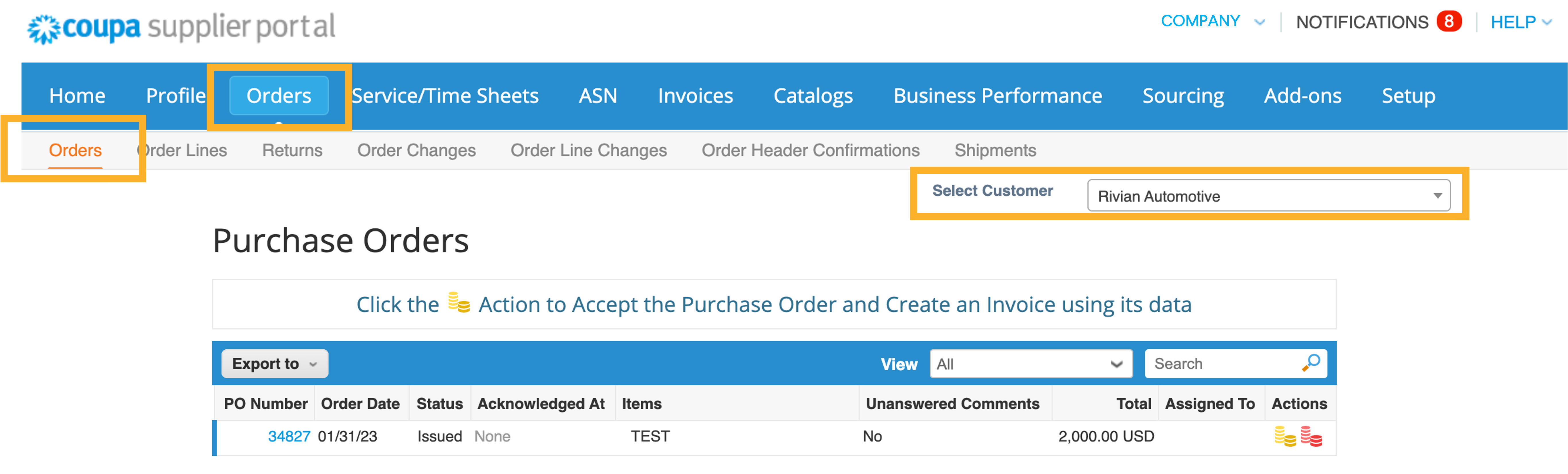
PO Statuses and Meanings
| Status | Description |
|---|---|
| Buyer Hold | The PO is approved but currently pending your Rivian Buyer's Review. |
| Cancelled | The PO has been canceled and no longer needed. |
| Closed | The remaining items on the PO is no longer needed or has been fulfilled. |
| Issued | The PO was approved and sent to you. |
| Soft Closed | Coupa closes POs that are idle for a certain amount of time. |
Invoices
View and Manage Invoices
View and edit invoices sent to Rivian. You will find a full list of invoices on the Invoices tab. Make sure you select Rivian on the customer drop-down list.
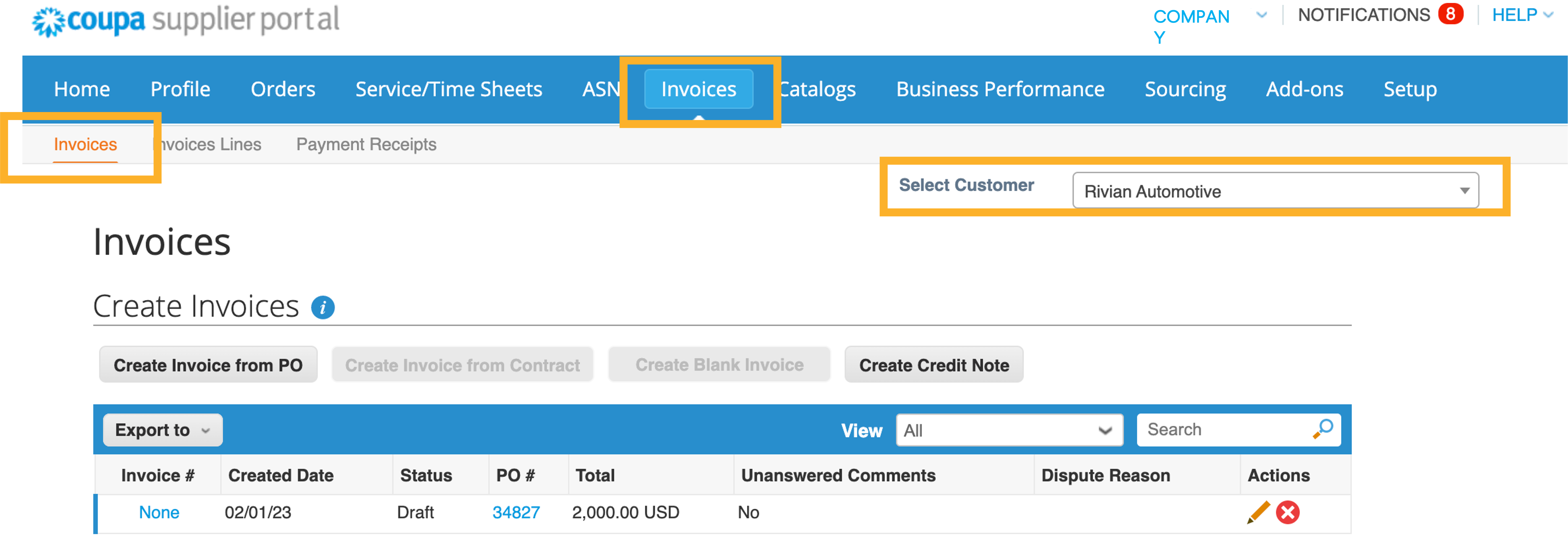
Invoice Statuses and Meanings
| Status | Description |
|---|---|
| Approved | The invoice has been approved for payment. |
| Disputed | Invoice has been disputed. See Invoicing Guidelines page for more details. |
| Draft | The invoice has been created but not yet submitted. |
| Pending Approval | The invoice is currently pending review by Rivian. |
| Processing | The invoice is being processed by AP and should be paid soon. |
| Voided | Invoice voided for correction. |
Catalogs
Catalogs 101
Showcase your product catalog through Coupa. Coupa’s free Catalog Management Solution is a great option to showcase your products to all Rivian buyers. Benefits include increased brand exposure, better pricing management, and improved efficiency.
Types of Catalogs
HOSTED CATALOGS
Hosted Catalogs are loaded into Coupa so users can search for and add items to their cart directly. Managed by suppliers through CSP.
Business Requirements:
- Fixed pricing is in place.
- Supplier must invoice via CSP.
- Maintenance is supplier responsibility.
PUNCHOUT CATALOGS
Punchout Catalogs are integrated directly with Coupa; users shop on your website and items are sent back to Coupa.
Business Requirements:
- Fixed pricing is in place.
- Supplier must have cXML capabilities.
- Maintenance is supplier responsibility.
View and Manage Catalogs
View, edit, or delete your customer-specific catalogs. Your Catalogs can be found under the Catalogs tab on the main menu; select Rivian from the Select Customer drop-down list.
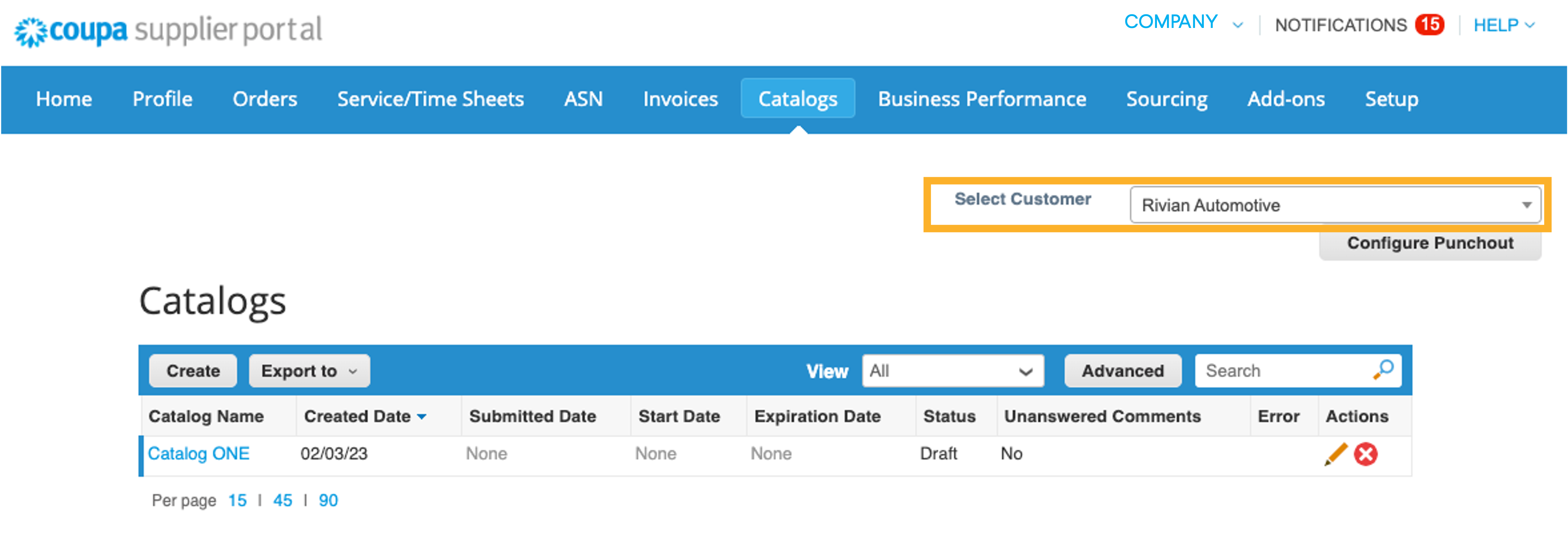
Catalog Statuses and Meanings
| Status | Description |
|---|---|
| Accepted | The catalog has been accepted by Rivian and items are available for purchase. |
| Pending Approval | The catalog has been received by Rivian, yet to be approved. |
| Draft | The catalog has been created but not submitted. |
| Rejected | The catalog has been rejected. Contact purchasing support for details. |
Create or Edit a Catalog
On the Catalogs page, select Rivian and click Create. Fill in mandatory fields marked with a red asterisk.
There is no limit to how many catalogs you can create, but each must be approved before becoming visible to buyers.
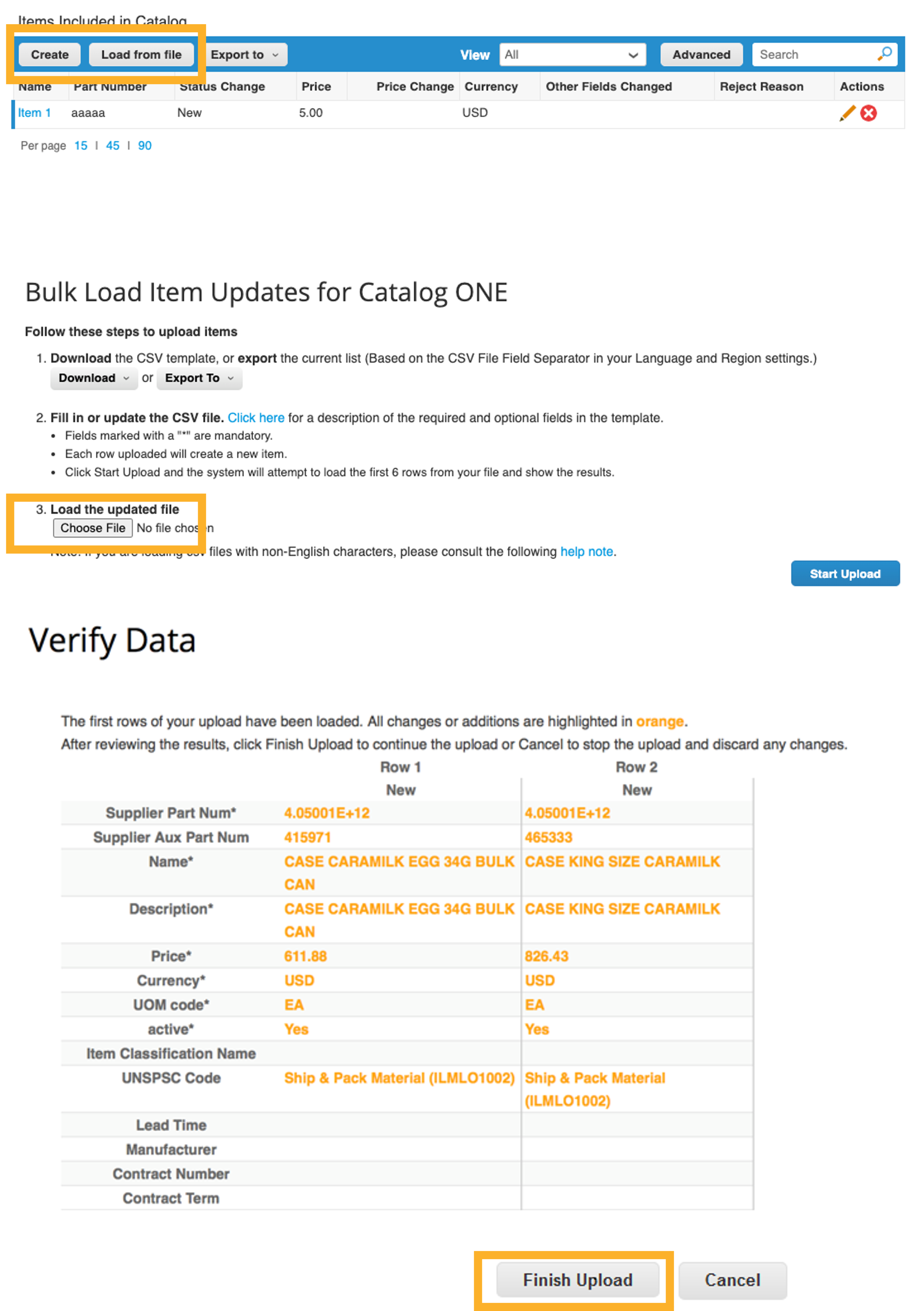
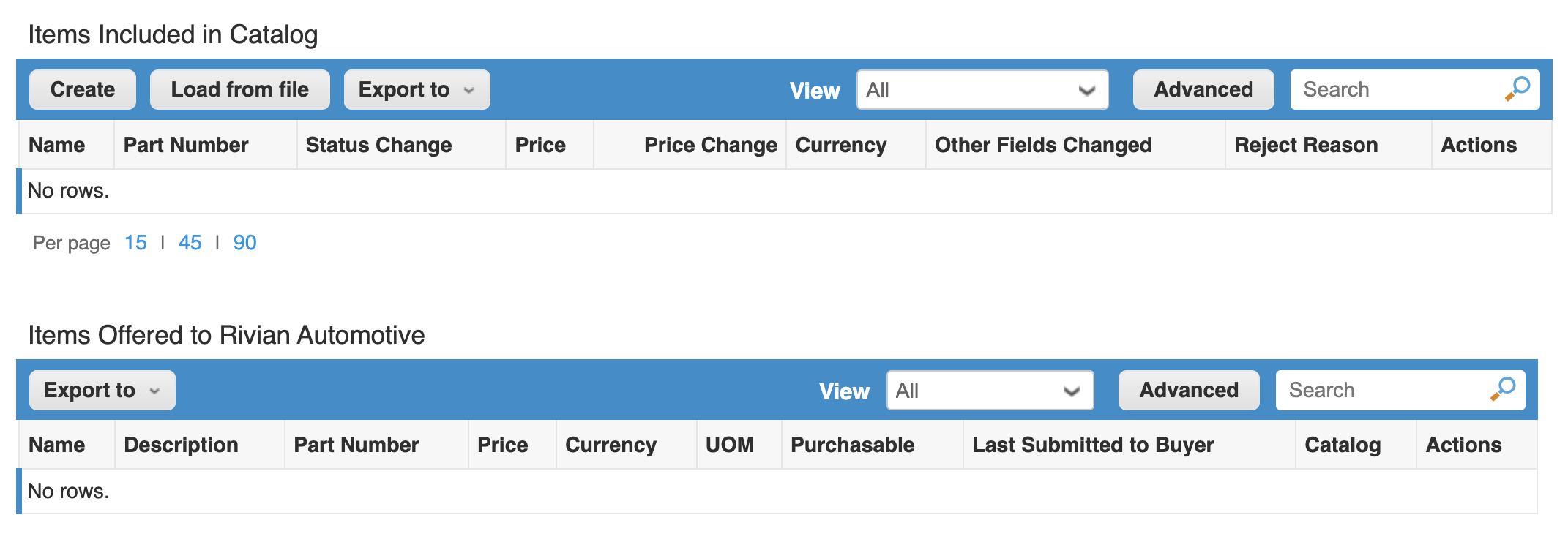
Items included in Catalog
This table lists all items included in the catalog. They are not available in Coupa until approved.
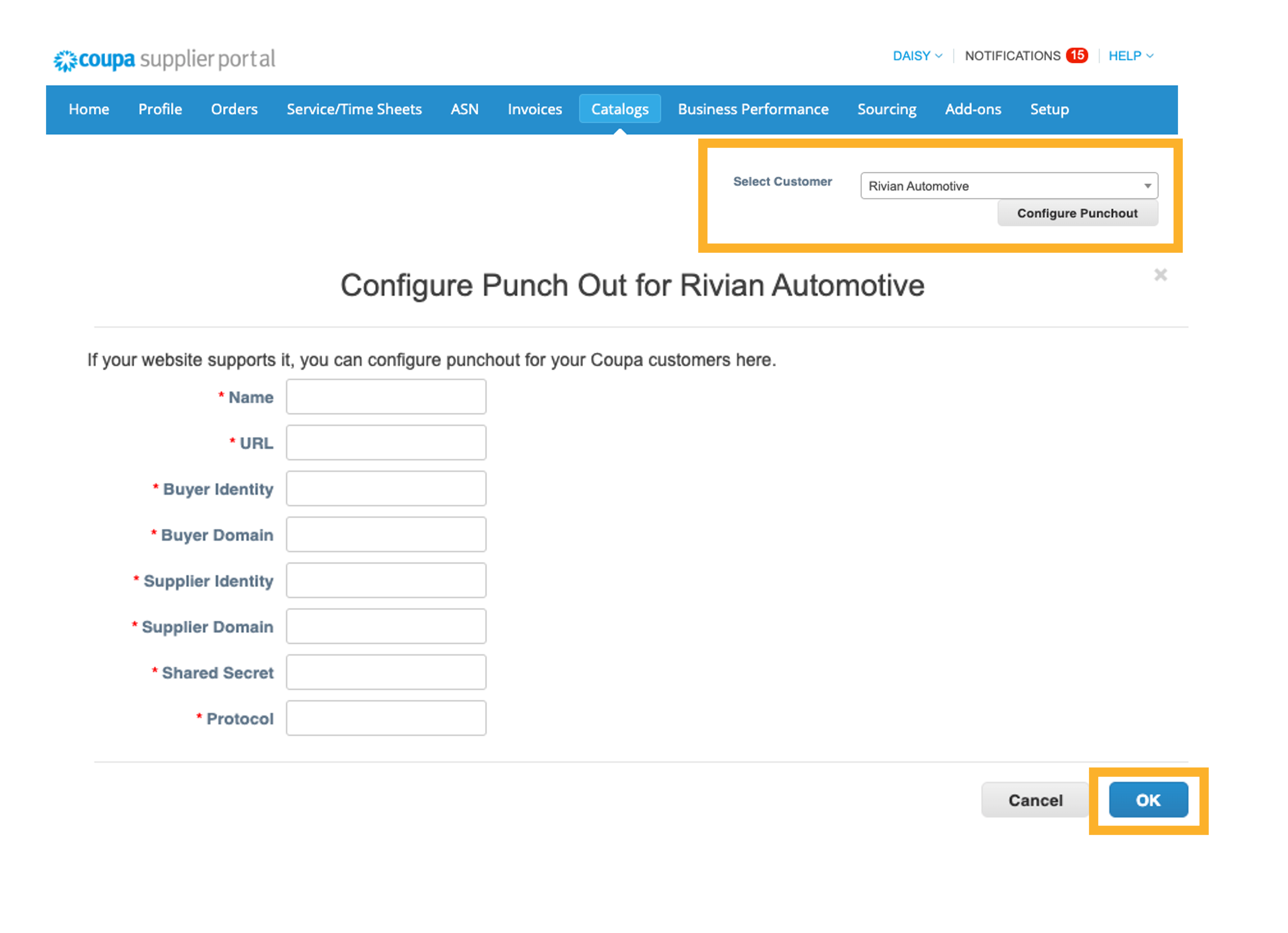
Configure Punchouts
If your website supports it, customer-specific punchouts can be configured. Provide Name, URL, Identities, and Shared Secret.
Sourcing
Access and Participate in a Sourcing Event
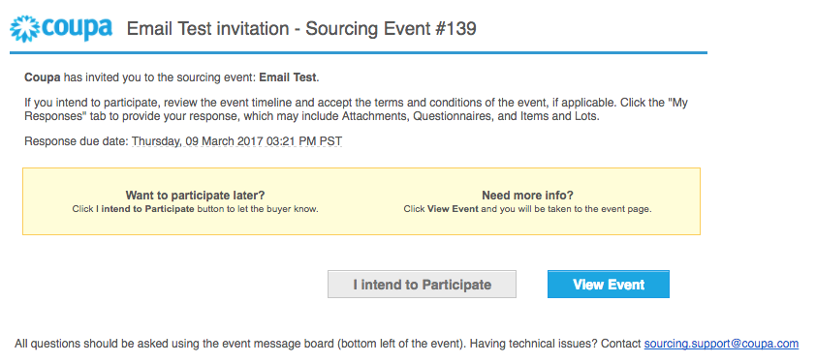
Email Invites: You can access an event directly from email. CSP access is not required.
- Follow instructions in the invitation email.
- Review and accept terms and conditions.
- Enter responses under the My Response tab.
- Submit Response to Buyer.
Public Sourcing Events
Go to Sourcing > Public Sourcing Events to view the list. You can search by name, commodity, or type.